Sakura Editor workflow guide
Sakura Editor Markdown: how to edit, preview, and save .md files
Sakura Editor is easiest to use with Markdown when you treat it as a text editor for writing and reviewing the source, not as a guaranteed replacement for the renderer that will publish the document. Write headings, lists, links, and code fences as text, use type-specific settings to keep the source readable, then check the rendered result in the environment that will display it. This separation makes README and documentation edits easier to recover.
Updated: 2026-08-15
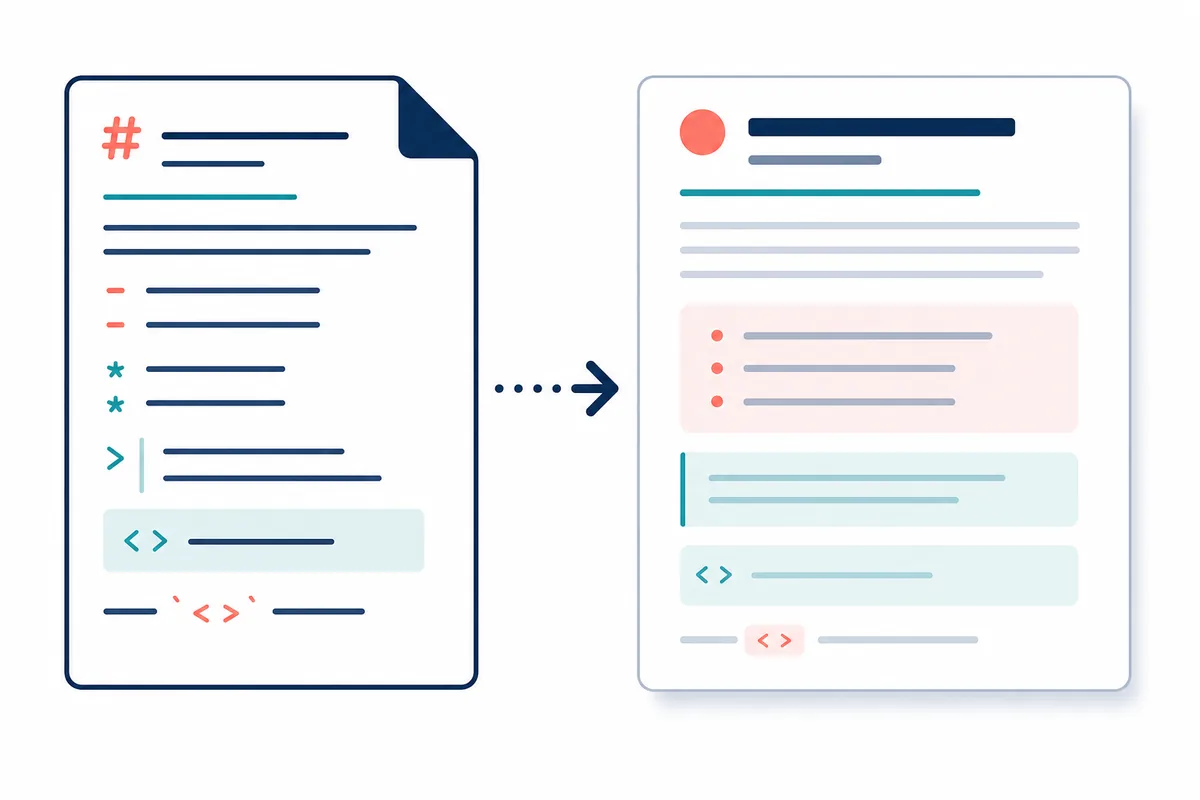
Quick answer: edit Markdown as text, then preview it in the target renderer
To use Sakura Editor for Markdown, open the .md file as text and write the syntax directly: headings, lists, links, emphasis, and fenced code. Type-specific settings can improve colors, wrapping, and readability, but they do not prove that a Markdown renderer will produce the expected output. The official Sakura Editor project documents a local way to check Markdown, so use that workflow or the preview environment used by your repository as a separate step.
| Task | Sakura Editor role | Boundary to remember |
|---|---|---|
| Write Markdown | Edit and search the source text | Keep the syntax visible and deliberate |
| Improve readability | Use type-specific colors and wrapping | Display settings are not rendering |
| Check the final look | Prepare and save the source | Preview in GitHub or the chosen renderer |
| Publish safely | Review encoding, line endings, and diffs | Do not confuse visual output with file format |
What using Sakura Editor for Markdown actually means
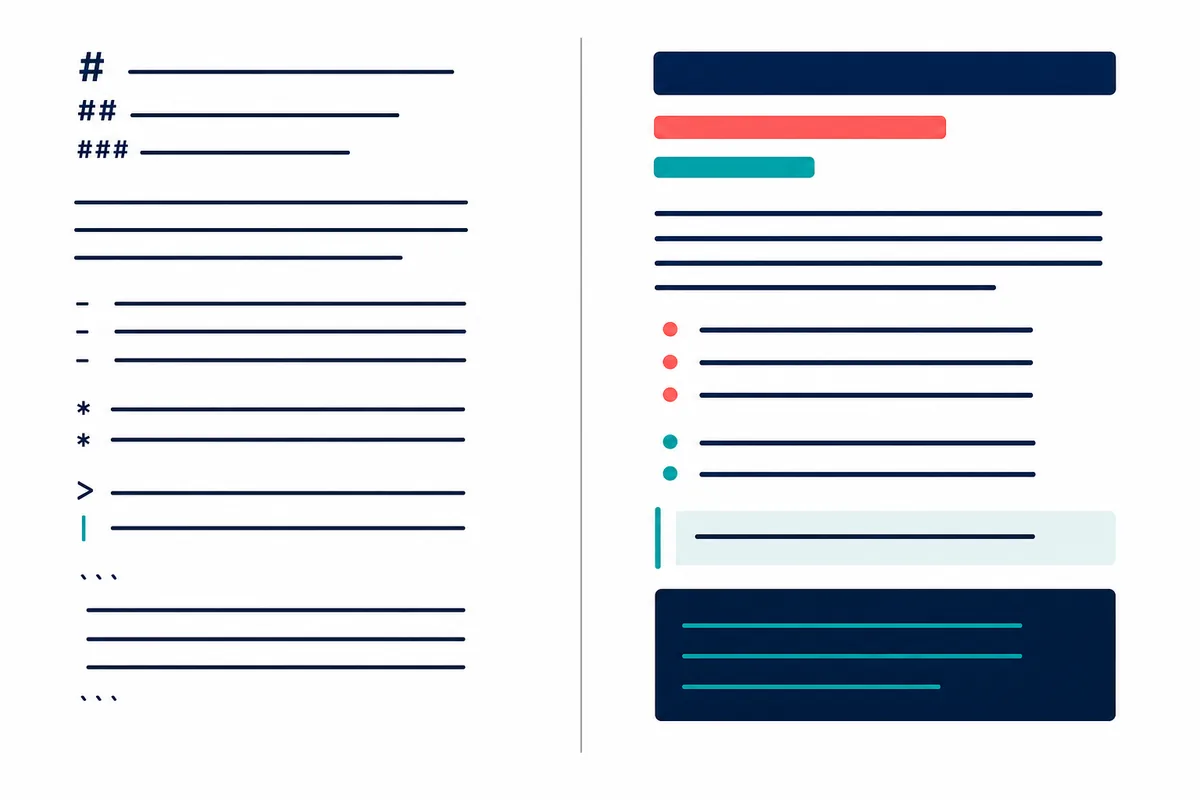
Markdown describes document structure with characters: # for headings, hyphens for lists, backticks for code, and brackets for links. Sakura Editor can open and edit that source as ordinary text. That is useful when you need precise control over spaces, blank lines, indentation, search-and-replace, or a small change in a large README. You can see the exact characters that will be saved instead of editing a hidden rich-text representation.
Editing and previewing are different jobs. The official project has a wiki page about checking Markdown locally, including the idea of viewing content in a GitHub-like form. That does not mean every Sakura Editor editing view is the same as GitHub rendering. Keep source review in the editor and rendering review in the publication target or the renderer your project uses.
A reliable way to open and edit an .md file
Start with a small sample instead of trying to fix a long document and its preview at the same time. Include one heading, one paragraph, a short list, a link, and a fenced code block. When opening an existing README or specification, make a working copy before saving. This gives you a recovery point if a line-ending or encoding choice changes more of the file than expected.
The .md extension alone does not guarantee that the most useful color or wrapping settings are active. First make the text readable. Then check the distinction between heading markers and prose, links and their destinations, and code fences and code content. Test the settings with a sample that resembles the files you edit every day, not with an empty document.
- Create a copySave a working copy of an important README or specification before changing it.
- Write a small sampleInclude a heading, list, link, inline code, and fenced code block.
- Check the syntaxReview blank lines, indentation, backticks, link brackets, and image paths.
- Choose the save formatMatch the repository's encoding and line-ending rules, then reopen the saved file.
Use type-specific settings to read Markdown more easily
A readable source view reduces mistakes even when you use a separate renderer. Adjust the contrast between heading markers and body text, make links or code easier to spot, and choose wrapping that lets you follow long URLs without changing the saved line breaks. These settings are visual aids. A colored line is not evidence that a heading, table, or code fence will render correctly.
When you use the official type-specific settings list, select the file type before changing its colors or behavior. A setting can appear to work for one extension and not another when the active type differs. Open a real .md sample while checking the result, and keep a backup of the previous settings if you are changing a shared workstation profile.
| Source element | Useful visual check | Common trap |
|---|---|---|
| Headings | The levels of #, ##, and ### are easy to scan | Assuming the editor will repair missing spaces |
| Lists | Bullets and nested indentation are visible | Treating wrapping as a saved newline |
| Code | Fences and code text are distinguishable | Expecting language highlighting to match the renderer |
| Long lines | URLs and tables remain trackable | Changing display wrapping when the file needs real line breaks |
Where should you preview Markdown?
Choose the final display target before deciding how to preview. A README intended for GitHub should be checked on GitHub or with a compatible local workflow. A static documentation site may use a different Markdown engine and support different extensions. Sakura Editor is useful for source edits, search, and careful review; keeping the renderer separate prevents an extension accepted by one system from being mistaken for a universal Markdown rule.
When a preview looks wrong, inspect the source before rewriting the whole document. Look for a missing blank line, an extra indent, an unclosed backtick, a link bracket, or a relative image path. Then confirm that the preview tool loaded the same saved file that you reviewed in Sakura Editor. This small parity check avoids debugging a stale copy or a different branch of the document.
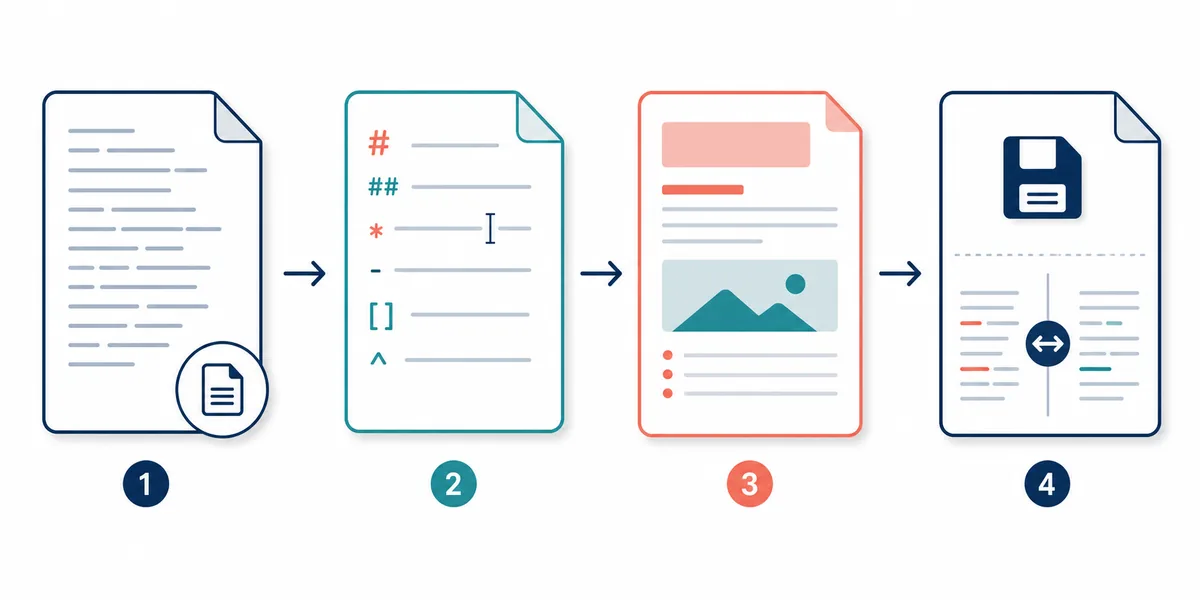
- Choose the targetDecide whether the file will be shown on GitHub, a wiki, or a site using a specific Markdown engine.
- Save the sourceKeep a working copy and match the target's encoding and line-ending expectations.
- Run the previewUse the official local-check workflow or the renderer used by the destination project.
- Review the diffAfter fixes, compare the source and confirm that only intended syntax and content changed.
Check encoding, line endings, and diffs before publishing
Markdown problems are not always syntax problems. Encoding, BOM, line endings, trailing spaces, and the final newline can affect a repository review or a renderer. If the document includes Japanese or other non-ASCII text, save it using the convention expected by the project, close it, and reopen it before replacing the original. CRLF and LF may look identical in the editor while producing a large diff elsewhere.
Use a short release checklist: heading levels, links, image paths, fenced code, tables, trailing spaces, and the final newline. Separate content changes from format-only changes in the diff. If every line changes, investigate line endings or encoding before assuming that the Markdown itself was rewritten.
| Check | Typical symptom | Next action |
|---|---|---|
| Encoding | Japanese text becomes corrupted elsewhere | Confirm the target encoding and reopen the saved file |
| Line endings | The whole file appears changed | Compare CRLF/LF separately from content edits |
| Links and images | The preview cannot resolve a resource | Check relative paths, brackets, and filename case |
| Trailing spaces | A paragraph or hard break behaves differently | Decide whether the spaces are intentional Markdown syntax |
Common mistakes and a safer troubleshooting order
A common mistake is treating syntax coloring in Sakura Editor as proof of rendered output. Another is applying a broad replacement to repair a preview issue and accidentally changing links, code fences, or table separators. Copy the smallest broken section, compare its characters and blank lines, and make one controlled change at a time. Keep the original file available until the preview and diff both agree.
If you move a Markdown setup to another PC, decide whether you need a type-specific setting or the complete Sakura Editor configuration. The settings-export, character-encoding, line-ending, and diff guides on this site cover those neighboring decisions. Keeping them separate helps you tell a display preference from a file-format change and a content edit from a repository-wide normalization.
Frequently asked questions
Frequently asked questions
Can Sakura Editor edit Markdown files?
Yes. Open an .md file as text and edit headings, lists, links, code fences, and other Markdown syntax directly. Confirm the repository's encoding and line-ending rules before replacing an important file.
Does Sakura Editor preview Markdown?
Source editing and rendered preview should be treated as separate steps. The official project documents a local way to check Markdown, while the final preview should be checked in GitHub or the renderer used by the destination project.
What should I do when Markdown colors are not applied?
Check the file extension and the active type-specific settings, then test a short sample containing headings and code. Colors and wrapping improve source readability; they do not themselves render Markdown.
Should a Markdown file use UTF-8 or Shift_JIS?
Follow the repository or publication target's convention. For Japanese content, close and reopen the saved file, then verify characters, BOM behavior, and line endings before committing the change.
What should I check first when a Markdown preview is broken?
Check heading spaces, list indentation, blank lines, backticks, link brackets, and relative image paths. Make a small controlled fix, then confirm the saved source and review a diff before applying a broad replacement.