Sakura Editor workflow guide
Sakura Editor Line Break Replacement: 7 Safer CRLF/LF Steps
The safe way to replace line breaks in Sakura Editor is to separate three jobs: identify the current line ending, test the replacement on a small sample, and review the file before saving. CRLF, LF, blank lines, tabs, spaces, and character encoding often appear in the same troubleshooting session, but they are not the same problem. This guide explains when to use Sakura Editor itself, when a browser line ending converter is enough for a pasted sample, and how to avoid broad replacements that damage indentation, CSV data, scripts, or old Shift_JIS files.
Updated 2026-07-29
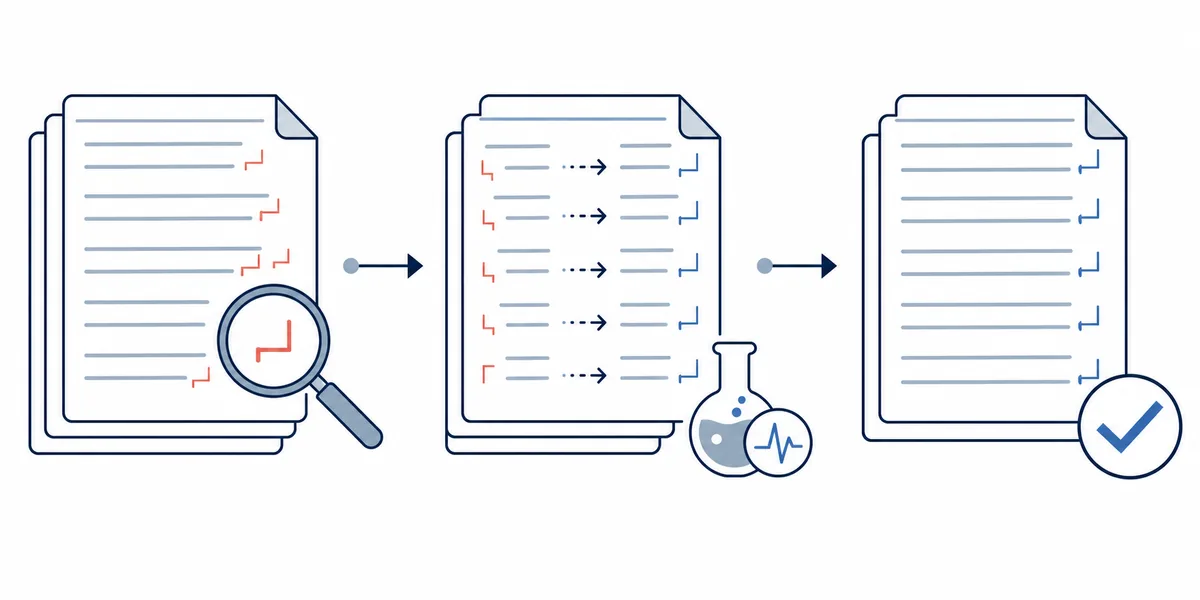
Quick answer: review before saving matters most
Most failed Sakura Editor line break replacements come from mixing up CRLF/LF conversion, blank-line cleanup, and encoding repair. Work on a copy, confirm the current line ending, decide whether regex is required, test a few lines, and inspect the diff before saving. This is especially important for configuration files, scripts, CSV exports, and legacy Japanese text.
| Goal | Check first | Safer action |
|---|---|---|
| Unify CRLF/LF | Line ending and save settings | Test a small range before the whole file |
| Reduce blank lines | Repeated empty lines | Collapse only two or more blank lines |
| Turn separators into lines | The separator character | Test tabs, commas, and spaces separately |
| Fix garbled text too | Encoding and BOM | Handle encoding before changing line endings |
A safe workflow for Sakura Editor line break replacement
Before opening Replace, make the file recoverable. Use a copy, a backup folder, or version control. Line ending changes are easy to miss on screen, so a file can look normal in Sakura Editor and still surprise another tool after saving.
Open the replacement dialog and decide whether you are replacing plain text or using a regular expression. Converting a tab or comma into a newline can often start as a plain replacement. Removing extra blank lines or unifying several line-ending styles usually needs regex, but the first test should still be small.
- Make recovery possibleKeep the original file or a version-control checkpoint.
- Identify the current line endingCheck whether the file uses CRLF, LF, CR, or a mix.
- Test a small rangeReplace only a few lines and inspect the result.
- Review before savingCheck diff, indentation, encoding, and line count.
Common newline replacement patterns
Line ending conversion, blank-line cleanup, and separator-to-line conversion are different jobs. A line ending conversion targets the end of each line. Blank-line cleanup targets repeated empty lines. Separator conversion targets a tab, comma, pipe, or space that currently divides values.
Sakura Editor regex behavior is not identical to JavaScript regex in the browser. Use this site's regex page to reason about a pattern, then confirm the final match in Sakura Editor on the actual file.
| Task | Search idea | Review after replacement |
|---|---|---|
| Unify CRLF to LF | Normalize Windows endings to Unix-style endings | Confirm only line endings changed |
| Collapse blank lines | Target repeated line breaks | Do not remove meaningful paragraph breaks |
| Tabs to new lines | Treat tab as a separator | Do not convert indentation tabs |
| Trim trailing spaces | Separate trailing spaces from line breaks | Keep meaningful full-width spaces when needed |
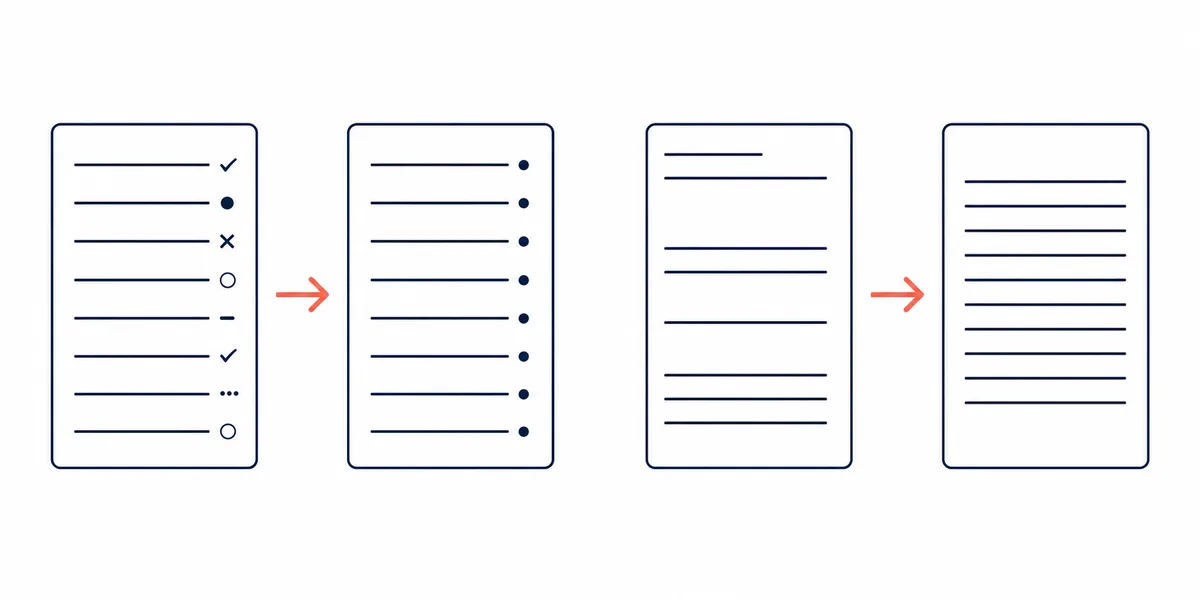
Small examples to test first
A log line, CSV export, or configuration list can become easier to read when separators become line breaks. The risk is context: a comma inside quotes, a tab used for indentation, or a blank line that separates sections may carry meaning.
Run one replacement condition at a time. If three replacements are chained and the document breaks, it becomes harder to know which step caused the problem.
(?:\t)
(?:,{1})
(?:(?:\r?\n){2,})When to use the browser tool and when to use Sakura Editor
The browser line ending converter on this site is best for pasted text and quick CRLF/LF inspection. It is not a replacement for checking a real file's final save format, BOM, Shift_JIS handling, or multi-file edits.
Use the regex tester for pattern thinking, then move to Sakura Editor for final matching. This keeps important decisions in the same environment that will save the file.
Troubleshooting failed replacements
If nothing matches, check regex mode, full-width versus half-width characters, saved state, encoding, and selected range. Similar-looking characters often have different code points.
If too much matches, narrow the range before making the expression complicated. Generated files, backups, and mixed file types make replacement results harder to review.
| Symptom | Check | Next action |
|---|---|---|
| No match | Regex mode, character type, saved state | Return to a short plain search |
| Too many matches | Scope and file type | Limit the selected range |
| Blank lines disappear | Repeated-line condition | Target only two or more empty lines |
| Garbled text | Encoding and BOM | Restore and verify encoding first |
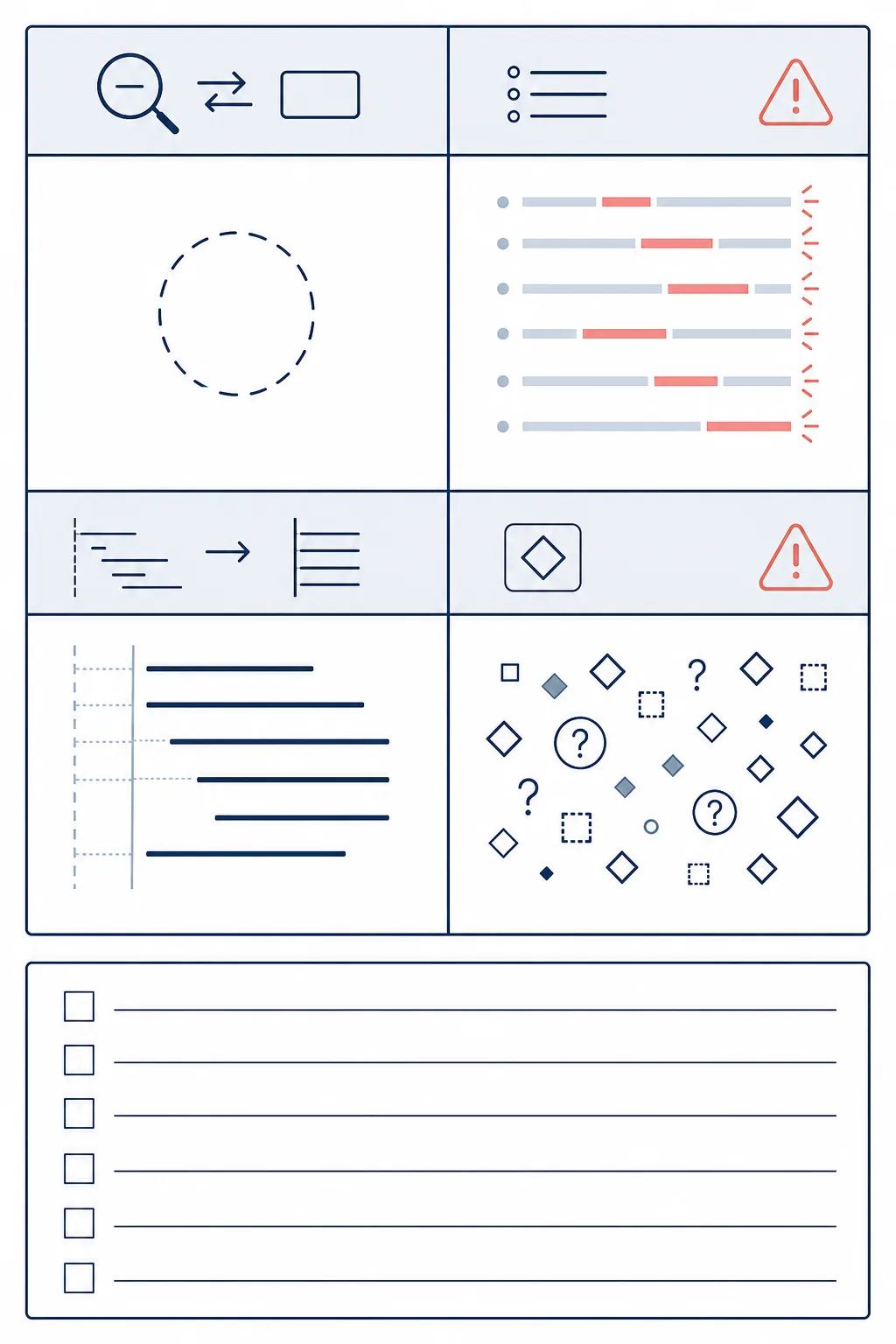
Final checklist before saving
After replacement, inspect the beginning, middle, and end of the file. Large logs and CSV files can break in only one region. A diff is the clearest way to confirm that only the intended line endings or separators changed.
When working with a team, keep line-ending cleanup separate from content edits. It makes review easier and prevents a formatting-only change from hiding real text changes.
For CSV and configuration files, open a sample in the application that will consume the file. Sakura Editor can display the text correctly while another program still expects a specific line ending or encoding.
When the same replacement affects several files, begin with a small group of the same file type. Expand to more folders only after the first group looks clean.
For older Japanese text files, avoid changing character encoding and line endings in the same step. Checking one variable at a time makes broken characters or changed line counts easier to diagnose.
Keep a short note of the pattern and file scope so the operation can be reproduced later.
Frequently asked questions
Frequently asked questions
What should I check before replacing line breaks in Sakura Editor?
Make a copy, check the current line ending, confirm encoding, decide whether regex is needed, and limit the first replacement to a small range.
What is the difference between CRLF and LF?
CRLF is common on Windows, while LF is common on Unix-like systems. Mixed endings can create noisy diffs or script problems.
Can I remove blank lines with the same replacement?
Yes, but treat it as a separate task. Target two or more repeated line breaks, not every line break.
Is the online line ending converter enough?
It is useful for pasted samples. For real files, final save format, BOM, Shift_JIS, and multi-file work should be checked in Sakura Editor.
Why did the file become garbled after replacement?
The root issue may be encoding, not line endings. Restore the file and verify encoding before another replacement.