Sakura Editor practical guide
Sakura Editor dark mode: a safe color and settings workflow
Sakura Editor does not need a mysterious theme download to become easier to read at night. Start with the color settings for the file type you actually edit, export a .col backup when the palette works, and then confirm that the setting survives a restart. This guide separates the visual palette from the settings location so a dark mode that looks correct does not disappear the next morning.
Updated: 2026-08-08
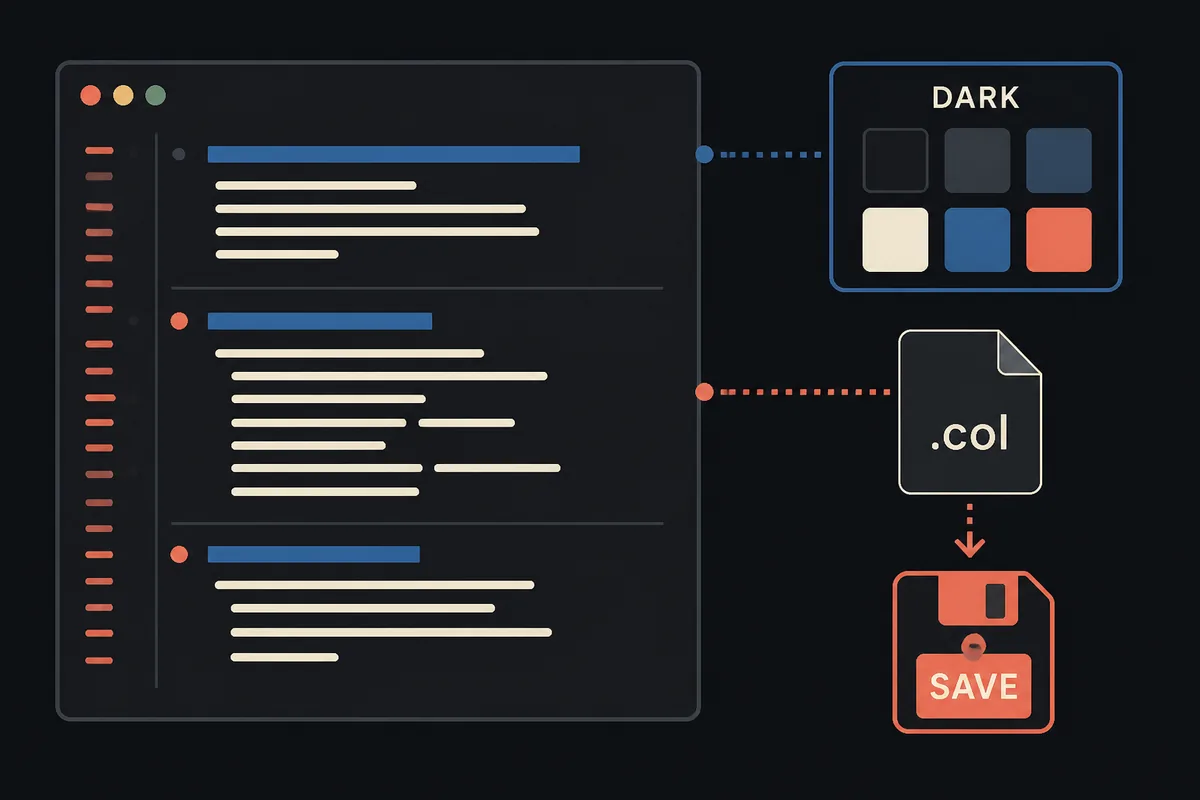
Quick answer: use color settings, then verify persistence
For a Sakura Editor dark mode, open the type-specific settings, change the Color values, and test the result against a short sample file. Set the background and text contrast first; syntax colors come second. Export the working color setting to a .col file when the version and file type are correct. If the dark theme returns to light after restarting, check whether Sakura Editor can write its user settings and whether you changed the setting for the file type that is actually open.
| Goal | What to change | What to verify |
|---|---|---|
| Reduce glare | Editor background and normal text | Text remains readable in a long paragraph |
| Keep code scannable | Comments, strings, numbers, and keywords | Colors remain distinct without looking neon |
| Reuse the palette | Export the type-specific color setting | The .col file belongs to the intended file type |
| Keep the theme after restart | User-specific settings and the settings folder | A small test file opens with the same colors |
What Sakura Editor dark mode actually changes
The phrase Sakura Editor dark mode usually describes a set of editor colors, not a single operating-system switch. The practical target is a dark background with text and syntax colors that remain distinguishable for the kind of file you edit. A palette for source code can use different colors from a palette for logs, Markdown, or plain text, because type-specific settings may be selected by the current file type.
This distinction matters when a theme appears to work in one file and not another. First identify the active type-specific setting, then change the colors inside that setting. Do not judge the result only from one short line of code: check a paragraph, a comment, a quoted string, a selected range, and an empty line. Dark mode is successful when the editor is comfortable and the information hierarchy is still visible.
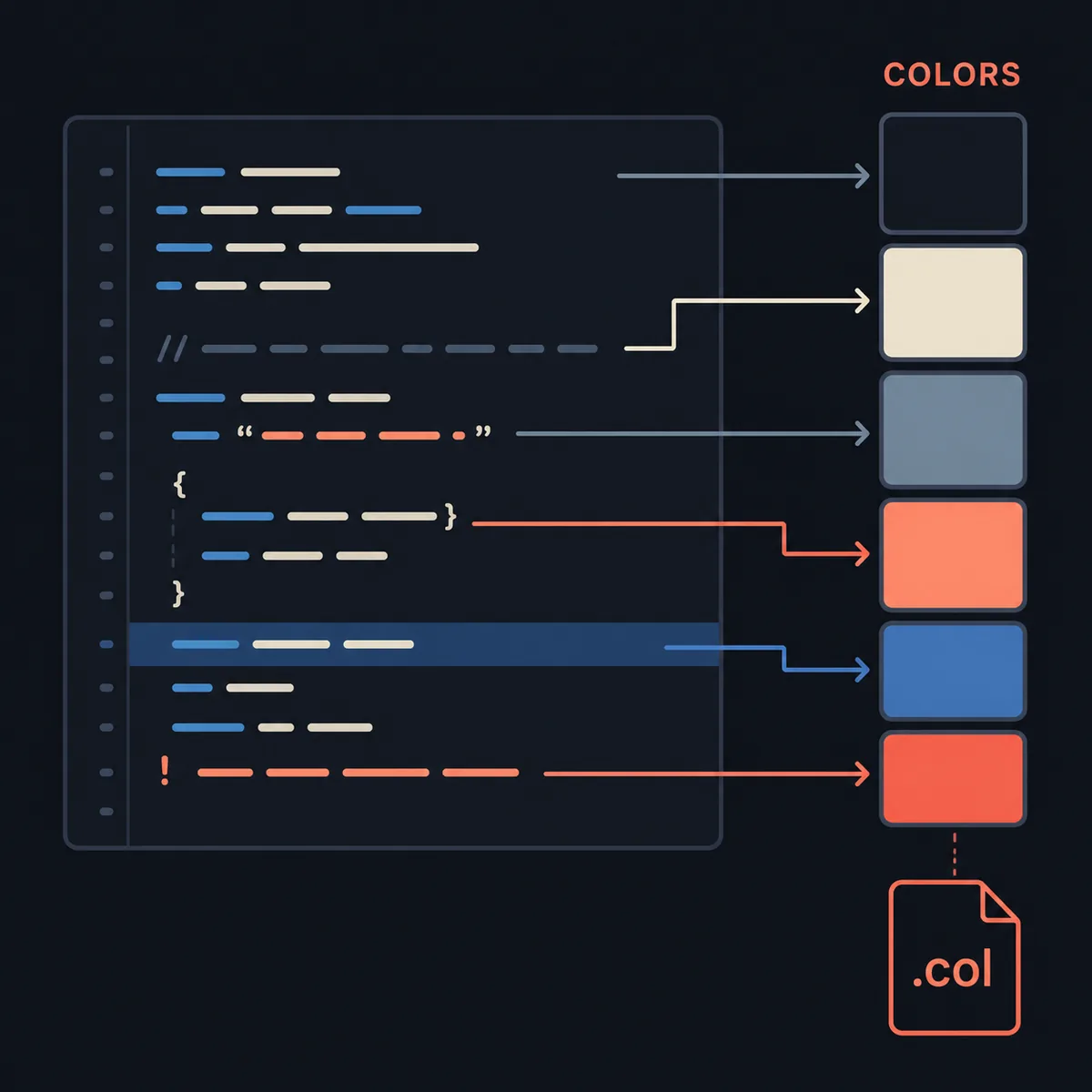
Open the Sakura Editor color settings
A common route is Settings, Type-specific settings, Change settings, and then the Color tab. Exact wording and available controls can vary with the installed version, so use the official help and the menu labels in your own copy as the final reference. Open the settings while a representative file type is active; otherwise you may change a palette that is not used for the document you are reading.
Before changing every color, make a small test. Put ordinary text, a comment, a quoted string, a number, a heading, and a selected range into a sample file. Change only the background and normal text first. If those two values already feel comfortable, continue with syntax colors one role at a time. This makes it easier to identify which change caused poor contrast or visual noise.
- Open a representative fileChoose a short source, log, Markdown, or plain-text sample that matches your normal work.
- Open type-specific settingsUse the settings route for the active file type and locate the Color controls.
- Set the two base colorsChoose the background and ordinary text before tuning comments, strings, or selections.
- Review, apply, and reopenInspect the sample, apply the change, close the settings, and reopen the sample before saving a theme.
Build a dark palette that stays readable
A dark interface is not automatically easier on the eyes. Pure black beside pure white can feel harsh, while low-contrast gray text can become tiring during a long review. A practical starting point is a near-black or blue-gray background, warm off-white body text, and a limited accent palette. Keep the brightest color for the information that deserves attention, rather than assigning bright colors to every token.
Use the table as a review checklist, not as a fixed color prescription. The right values depend on monitor brightness, room lighting, font size, and the file type. Check ordinary text at normal zoom and then inspect comments and selections at the same time. If a selected range hides the original text, the selection colors need adjustment even when the base theme looks attractive.
| Color role | Practical direction | Failure sign |
|---|---|---|
| Background | Dark charcoal or blue-gray rather than absolute black | The page looks flat and thin strokes disappear |
| Normal text | Warm off-white with strong contrast | Long paragraphs cause squinting |
| Comments | Muted green or gray that is still visible | Important notes look disabled |
| Strings and numbers | Two distinct mid-bright accents | Quoted values blend into keywords |
| Selection and caret | A clear block or underline against the background | The active line cannot be located |
Use .col files for export, import, and recovery
A .col file is commonly used to carry a Sakura Editor color setting. Treat it as a versioned backup for a specific type-specific palette, not as a universal theme that must work unchanged in every installation. Export after you have tested the colors, keep the filename descriptive, and note which file type and Sakura Editor environment produced it.
When importing, select the target type-specific setting first and confirm the result with the same sample file. If an imported palette looks empty, incomplete, or different from the source, do not continue editing real documents. Compare the application version, the active file type, and the exported file. Creating a fresh export from the current installation is often safer than guessing at undocumented file contents.
- Finish the paletteReview background, text, comments, strings, selection, and caret colors on a representative sample.
- Export the color settingSave the .col file with a name that includes the file type or project context.
- Test a separate copyImport the file into the intended type-specific setting and compare the same sample again.
- Keep a known-good backupStore the working .col file beside a note of the application version and the date of the export.
Make sure the dark mode survives a restart
If Sakura Editor returns to a light palette after restarting, the color values may not be the real problem. The application may be writing settings to a location that the current account cannot update, or you may have edited a type-specific setting that is not selected for the next file. The official help separates user-specific settings and the settings folder, so check those concepts before changing the palette again.
A useful test is to change one harmless color, close Sakura Editor normally, restart it, and open the same sample file. If the value is gone, review the user-specific settings choice and the location used by your installation. Avoid repeatedly launching an editor with elevated permissions as a permanent fix; first understand where the settings are intended to live and whether the account has normal write access.
| Symptom | Likely boundary | Next check |
|---|---|---|
| The preview changes but restart resets it | Settings are not being persisted | Review user-specific settings and the settings folder |
| One file is dark and another is light | Different type-specific settings are active | Check the file type and its selected palette |
| The .col file imports but colors look wrong | Wrong target type or version context | Import into the matching type and compare a sample |
| Only comments are hard to read | One role has too little contrast | Tune that role without changing the base background |
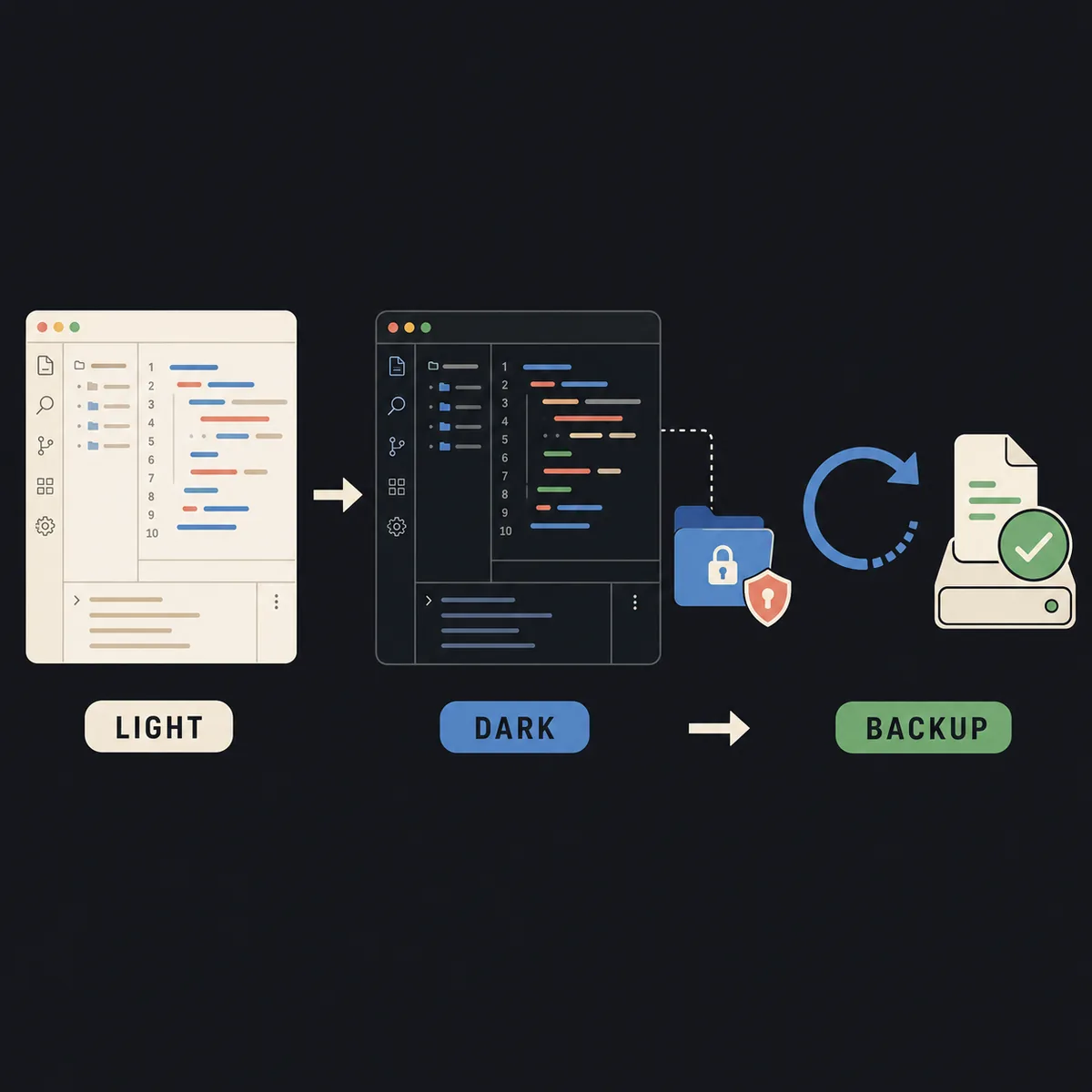
A safe Sakura Editor dark mode checklist
Use this sequence when setting up a new machine or moving a palette between installations. It keeps visual comfort, file-type matching, and recoverability in the same workflow. The checklist is deliberately conservative because a color setting can look correct while a hidden file-type or permissions issue remains unresolved.
The website is an independent guide and cannot see your local Sakura Editor settings. Menu names, available color roles, and persistence behavior can vary by version and Windows setup. When the official help and a local screen disagree, record the local behavior and use a copy of the configuration while you investigate.
- Back up before changingKeep the existing .col file or a copy of the current settings before experimenting.
- Test the active file typeUse a sample containing normal text, comments, strings, selections, and blank lines.
- Tune contrast before decorationSet background, normal text, selection, and caret visibility before adding accent colors.
- Export and restartCreate a named .col backup, close the application normally, and verify the same palette after reopening.
- Finish with a real file copyOpen a copied project file and check code, logs, Markdown, or text at the sizes you use every day.
Frequently asked questions
Frequently asked questions
Does Sakura Editor have a one-click dark mode?
The practical Sakura Editor dark mode workflow is usually built through type-specific Color settings rather than assumed to be one universal switch. Menu names and available controls vary by version, so confirm the local settings screen and the official help.
Why does Sakura Editor dark mode reset after restart?
Check whether the user-specific settings choice and settings folder allow the current account to save changes. Also confirm that you changed the palette for the file type opened after the restart.
What is a Sakura Editor .col file used for?
A .col file is commonly used to export or import a color setting. Keep it tied to the intended file type and application context, and test the import with a sample before opening important files.
How can I choose readable dark mode colors?
Set a dark charcoal or blue-gray background, use strong warm text contrast, keep comments visible, and make selections and the caret easy to locate. Review the smallest text and a selected range on your own display.
Can I use a community dark theme as an official Sakura Editor theme?
Community color examples can be useful references, but they are not official guarantees. Inspect the file, keep a backup, verify the source and application version, and test the result before using it on real work.