Sakura Editor practical guide
Sakura Editor diff: 7 steps to use diff.exe safely
The safe way to use Sakura Editor diff is to decide which file is old and which file is new, confirm that diff.exe is available, run the comparison with minimal ignore options, and read the result before saving. Diff is not a replacement for backups or version control. It is a review step that helps you notice added, changed, and deleted lines before a regex replacement, macro, or manual edit becomes permanent.
Updated 2026-07-30
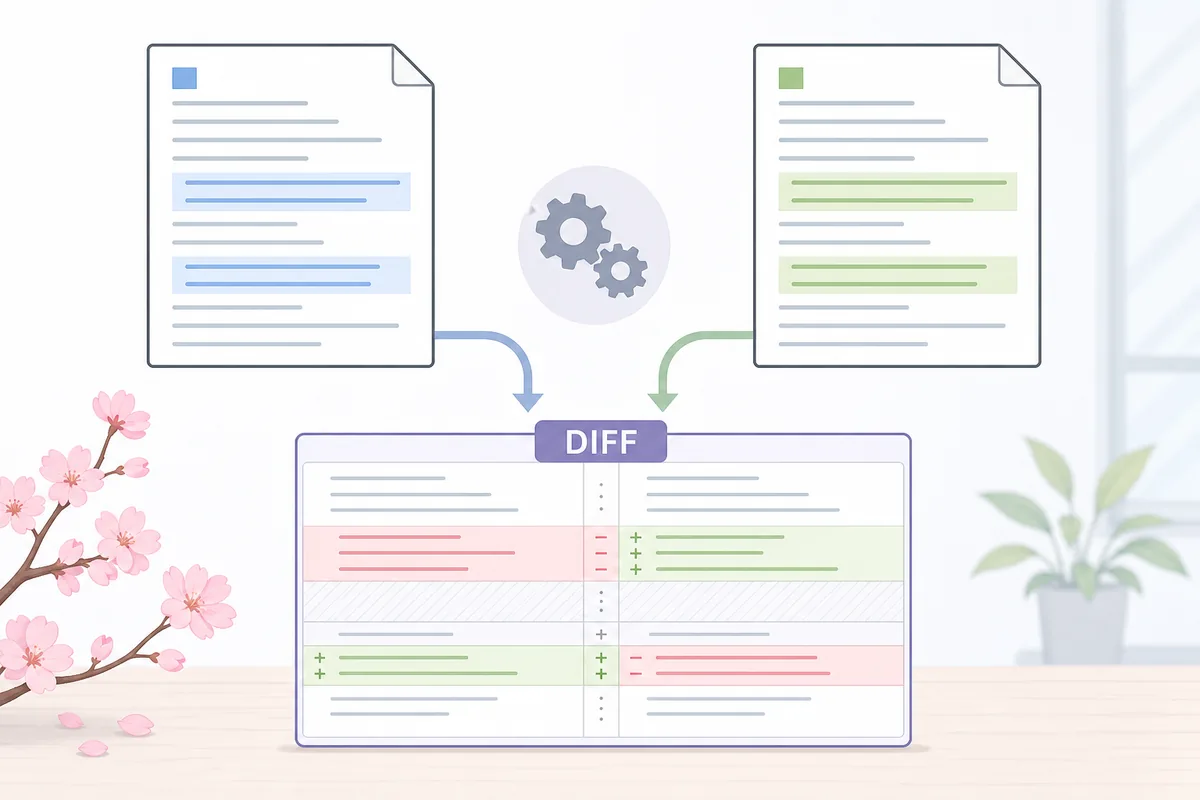
Quick answer: use diff as a pre-save review
Sakura Editor diff compares the current text with another file line by line. The official help notes that DIFF display requires diff.exe, and some environments need that file prepared separately. For practical work, protect the original file first, choose the comparison direction, inspect the raw diff once, and only then add ignore options such as whitespace or blank-line handling.
| Decision | Recommended handling | Easy mistake |
|---|---|---|
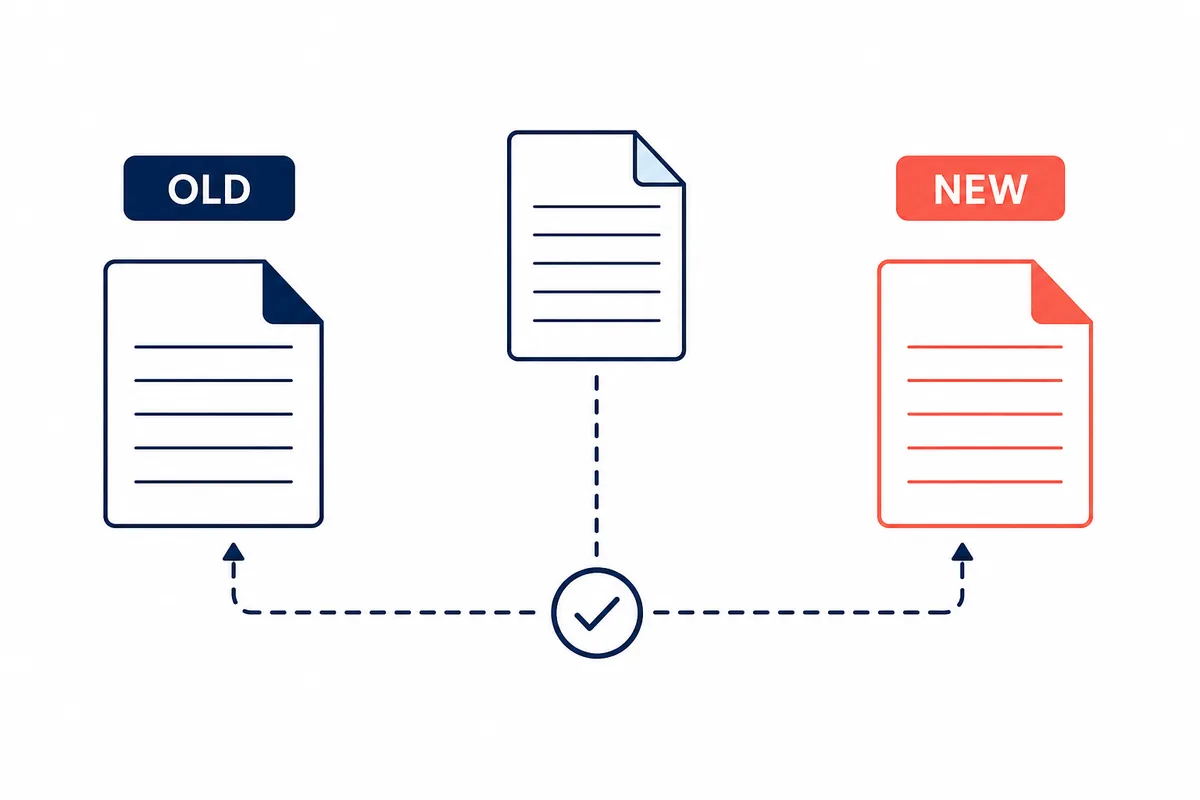
| Old and new files | Treat the untouched copy as old and the edited file as new | Reversing them flips added and deleted lines |
| diff.exe | Confirm it is available beside sakura.exe | Some older diff builds mishandle paths with spaces |
| Whitespace options | Enable only when you know why | Indentation changes can disappear |
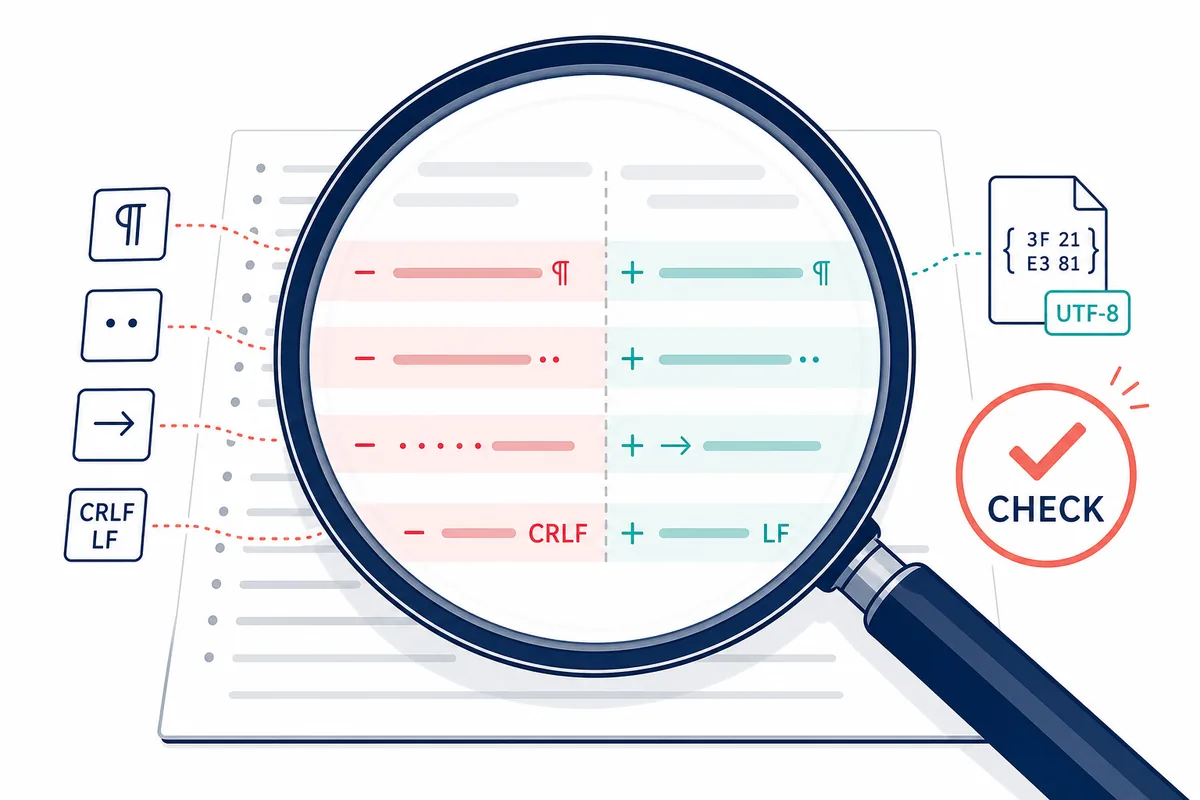
| Encoding and line endings | Check separately before trusting the diff | CRLF/LF or BOM changes can make every line look changed |
What Sakura Editor diff is good for
Sakura Editor diff is useful when you want to compare two text files after a small edit. It fits settings files, logs, exported snippets, macro results, and before-and-after regex replacement checks. The value is not that it edits for you; the value is that it shows which lines were added, removed, or changed before you save.
It is less suitable for comparing whole folders, resolving code conflicts, binary files, or visual side-by-side merge work. For those jobs, a dedicated comparison tool is better. Keep Sakura Editor diff for focused text review near the file you are already editing.
Prepare diff.exe and the two files
Before relying on the feature, verify that diff.exe can be used from the Sakura Editor folder. The official help describes diff.exe as required for DIFF display and says it should be placed in the same folder as sakura.exe. If the command fails, check the executable name, folder, permissions, and paths with spaces before changing your text.
Prepare the files just as carefully. Keep the original file, create an edited copy, and name the copies clearly. If the project is under Git, commit or stash unrelated work first. Clear names such as config-old.ini and config-new.ini make the diff direction easier to read.
- Protect the originalCopy the file or make sure version control can restore it.
- Check diff.exeConfirm that the executable can be used by Sakura Editor.
- Choose old and newFix the comparison direction before opening the dialog.
- Read before savingUse the result as a review, not as a formality.
Choose whitespace, blank-line, and tab options carefully
Ignore options are helpful, but they can hide the exact issue you need to see. Ignoring whitespace may make a noisy log easier to read, yet it can also conceal indentation changes in code, YAML, TSV, and configuration files. Blank-line ignore can reduce visual noise, but it can also hide meaningful paragraph or record separators.
Start with the normal diff. If the result is unreadable, add one option at a time and ask what each option is hiding. When the display changes dramatically, the real problem may be line endings, encoding, tabs, or trailing spaces rather than text content.
| Option | Useful when | Risk |
|---|---|---|
| Case-insensitive | You only care about spelling or labels | Identifiers may be case-sensitive |
| Ignore whitespace | The file has layout noise | Indentation changes may vanish |
| Ignore blank lines | Empty lines are not meaningful | Paragraph breaks may be hidden |
| TAB-SPACE conversion | Tab width differs between files | TSV and Makefile content can be misread |
How to read diff markers
Read the markers after checking the comparison direction. Added lines exist in the edited file but not in the other file. Changed lines exist in both files but differ. Deleted lines exist in the other file but not in the current file. If old and new are reversed, your conclusion will be reversed too.
When nearly every line is marked, stop and inspect line endings, encoding, BOM, tab width, and trailing spaces. A file can look massively changed even when the visible words are nearly identical.
A safe 7-step workflow
After a regex replacement, compare the edited file with the untouched copy before saving over the original. If the diff only shows the expected settings or log lines, proceed. If the whole file changes color, investigate line endings or encoding first.
The same workflow helps after grep-based edits. Review one file at a time, keep the raw diff before using ignore options, and use the browser text diff tool only for short pasted samples. The final file review should still happen against the real file in Sakura Editor.
- Copy the targetKeep a reversible starting point.
- Edit a small sampleAvoid applying broad replacements blindly.
- Set the old fileMake the direction explicit.
- Read the raw diffCheck without ignore options first.
- Add only needed optionsHide noise deliberately, not by habit.
- Separate encoding issuesDo not mix text edits with line-ending fixes.
- Save after reviewCheck line count and changed regions first.
Pre-save checklist for reviewing Sakura Editor diff results
After the comparison opens, separate real content edits from format-only noise. A changed space, tab, or trailing blank can matter in code, TSV, Markdown tables, and configuration files. A changed BOM or line ending usually belongs to the save-format review, not to the content-edit review. Treat those two categories separately so you do not approve a file just because the visible words look right.
Read the result by change group, not only from top to bottom. A renamed key, a removed comment, a replacement result, and a deleted blank block each need a reason. If you cannot explain why a group changed, do not save yet. Reopen the old file, reduce ignore options, and compare again before you overwrite the working copy.
The online text diff tool and Sakura Editor diff serve different stages. Use the online tool for a short pasted sample when you want to understand a pattern quickly. Use Sakura Editor diff for the final file review, because it keeps you close to the file path, encoding, line ending, and save action that will actually affect the document.
For shared files, write down what changed, why it changed, and how to revert the smallest affected block. That note is especially useful after grep results, regex replacement, or macro output. Sakura Editor diff is not a merge tool, but it is a practical checkpoint before saving a text file that other people or scripts will consume.
| Check | Where to look | Decision rule |
|---|---|---|
| Spaces and tabs | Indentation, separators, trailing blanks | Do not ignore them in code, TSV, or config files |
| Line endings | CRLF/LF changes across many lines | Normalize first when the whole file appears changed |
| Encoding and BOM | Save format, mojibake, first line | Separate content edits from format edits |
| Replacement output | Repeated change patterns | Confirm only the intended pattern changed |
When diff does not run or shows too many changes
If diff does not run, check whether diff.exe is present, whether the file is blocked by permissions, and whether the path contains spaces that an older build cannot handle. The official help mentions GNU diff compatibility and warns that some builds do not handle spaces in paths well.
If the diff is too large, check CRLF versus LF, BOM, character encoding, tabs, and trailing whitespace before assuming the content is wrong. Ignore options are best used after the cause is known.
Frequently asked questions
Frequently asked questions
Does Sakura Editor diff require diff.exe?
Yes. The official help describes diff.exe as required for DIFF display.
Is diff.exe bundled with Sakura Editor?
The official help says it is not included in the package in the documented environment, so check your current distribution before assuming it is present.
Should I always ignore whitespace?
No. Whitespace can be meaningful in code, TSV, Markdown, and configuration files.
Why does the whole file appear changed?
Line endings, encoding, BOM, tab width, or trailing spaces may have changed.
How is this different from the online text diff tool?
The online tool is useful for pasted samples. Sakura Editor diff is better for reviewing actual files before saving.