Sakura Editor practical guide
Sakura Editor initial settings: recommended first changes and save checks
The best Sakura Editor initial settings are not a universal preset. Start with the files you actually edit, separate common settings from type-specific settings, and verify that a small change survives closing and restarting the editor. This guide gives a practical starting set for code, logs, Markdown, and ordinary text without treating one font size or tab width as mandatory.
Updated: 2026-09-22
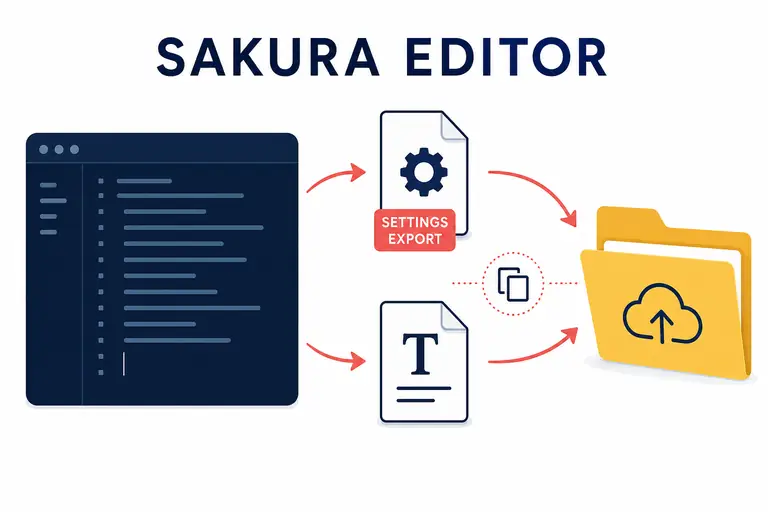
Quick answer: check six settings first
Start with the font and size, line wrapping, tab and whitespace visibility, line-position cues, colors, and persistence after restart. The right value depends on the files and screen you use, so test a representative sample containing Japanese or other non-ASCII text, symbols, blank lines, long lines, comments, and strings before changing a large project.
| Setting | Useful starting point | What to verify |
|---|---|---|
| Text | A font that keeps Japanese, symbols, and Latin text readable | Characters do not collide or change height unexpectedly |
| Wrapping | Turn it on for prose; switch it off when column position matters | Logs and code remain easy to inspect |
| Tabs and spaces | Make whitespace visible before converting anything | The file contains the characters you expect |
| Colors | Set background and normal text contrast first | Comments, selections, and strings remain visible |
| Type-specific settings | Change only the file type that needs it | A change does not leak into unrelated files |
| Saving | Close and restart before trusting a change | The same sample opens with the same settings |
What to change first in Sakura Editor
People searching for recommended Sakura Editor settings often meet a long list of menu items without a clear order. You do not need to configure macros, advanced regular expressions, and every display option on the first day. Begin with readability, predictable line handling, visible whitespace, and a setting you can restore. These choices produce the most useful feedback with the least risk of changing a real file accidentally.
Prepare one short sample that resembles your everyday work. Include Japanese or other non-ASCII characters, Latin text, punctuation, an empty line, a long line, and the code or prose roles you usually read. Record each change before making the next one. A small, reversible experiment makes it much easier to tell whether a problem comes from a font, a color, a file type, or a save location.
- Open a representative sampleUse the file type you work with most often: code, logs, Markdown, or prose.
- Check editor-wide choicesReview text, display, and wrapping options that should apply broadly.
- Confirm the active typeColor and input behavior may belong to the current type-specific setting.
- Verify after restartSave the change, close the application, restart it, and reopen the same sample.
Separate common settings from type-specific settings
A common Sakura Editor setup mistake is changing a Markdown palette and expecting it to explain every other file, or changing a global option when only one file type needed it. Common settings describe editor-wide behavior and display choices. Type-specific settings can control colors, wrapping, and input behavior for code, Markdown, logs, or other file categories.
When you open a settings screen, first identify how the current file is classified. PowerShell, Python, Markdown, and plain text have different needs. Keep common settings small and predictable, then adjust type-specific settings only where the workflow benefits. This scope makes future troubleshooting and settings export much easier.
| Scope | Good use | Avoid |
|---|---|---|
| Common settings | Editor-wide display and operation preferences | Applying one extension's colors to everything |
| Type-specific settings | Colors, wrapping, and input for a file category | Changing a type without checking the active file |
| Color settings | Background, normal text, comments, and selection | Judging contrast from one short code line |
| External settings files | Moving a tested palette or type configuration | Importing an unknown file without a backup |
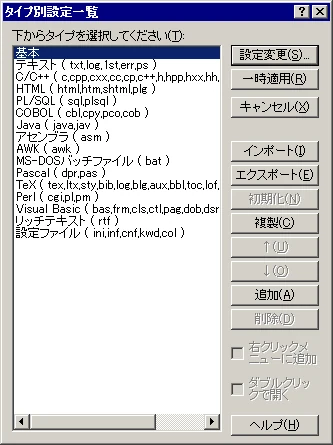
Six settings worth checking first
Work through the following list one item at a time. Use a readable font and size first, then decide whether wrapping helps the current task. Make tabs and spaces visible before converting them, because visual alignment is not proof that the underlying characters match. Treat encoding and line-ending checks as part of saving, not as a color or font problem.
A Japanese document may include full-width and half-width characters, symbols, combining marks, or long URLs. A file can look correct in the editor while the receiving system expects a different encoding or line ending. Keep the original, use the existing character-encoding and line-ending guides when needed, and compare before overwriting a real file.
| Order | Setting | Start by | Common mistake |
|---|---|---|---|
| 1 | Font and size | Choose a readable baseline for Japanese and symbols | Assuming display and saved encoding are the same |
| 2 | Wrapping | Use it for prose; switch it for column-sensitive code or logs | Losing the original column position |
| 3 | Tabs and spaces | Show whitespace; test replacement on a copy | Converting tabs without checking the file |
| 4 | Line cues | Keep line positions and newline marks easy to review | Mistaking a display aid for file content |
| 5 | Colors | Set background and normal text before accents | Making comments or selections too faint |
| 6 | Save and restart | Close the app and reopen the same sample | Mistaking a temporary change for a saved one |
Recommended choices differ for code, logs, Markdown, and prose
Use-case-specific defaults are more useful than a single universal Sakura Editor preset. For code, line position, indentation, and type-specific colors often matter more than always-on wrapping. For logs, preserve timestamps, IDs, and columns. For prose, wrapping and a comfortable font usually matter most. In every case, make the smallest change that improves review and keep the original text available.
Markdown benefits from visible headings, links, and code blocks, but editor coloring is not the same as the renderer used by a publishing site. Before saving, check encoding, line endings, trailing spaces, image paths, and links separately. Use the Markdown and text-diff guides when the file is going to be published or reviewed by someone else.
| Use case | Check first | Final verification |
|---|---|---|
| Code | Type-specific colors, line numbers, and tab width | Formatter, parser, or tests |
| Logs | Wrapping, line position, and search visibility | Timestamps, IDs, and line count |
| Markdown | Heading and code colors, wrapping | Published preview and link targets |
| Prose | Font, size, and wrapping | Full-width text, blank lines, and final newline |
| PowerShell/Python | Type-specific colors for comments and strings | Syntax check in the target runtime |
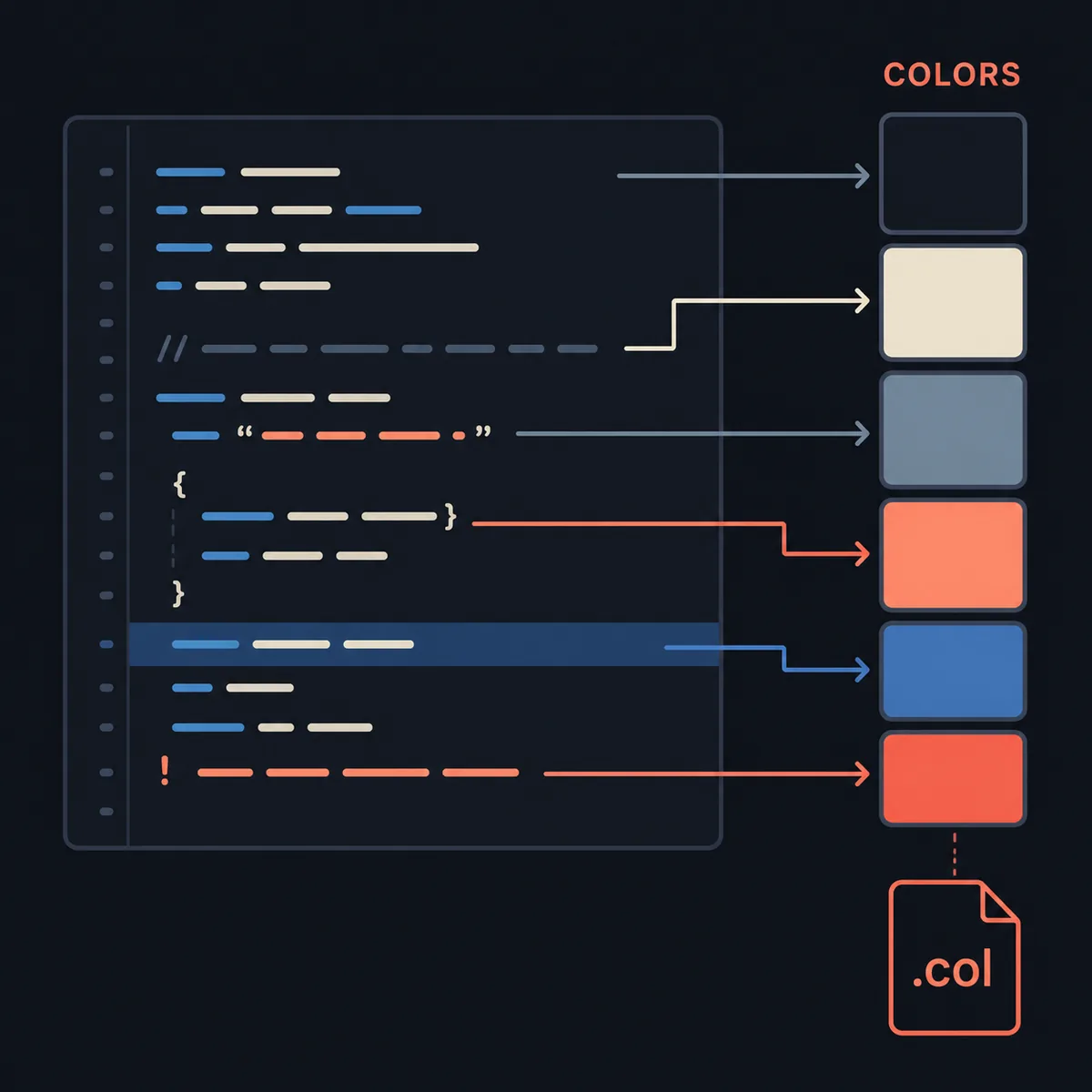
Save the settings and verify them after restarting
A setting can appear correct and still disappear after the application closes if it was applied to another type, saved to another user location, or blocked from being written. Change one item, close Sakura Editor fully, restart it, and reopen the same sample. If the change remains, continue. If it does not, check the active type, settings folder, user-specific settings, and write permissions before changing more options.
If you plan to move the setup to another PC, read the settings-export guide before copying files over the top of an existing configuration. Keep the source backup, record the version and settings location, and test a small sample on the destination. Copying a configuration file proves that bytes moved; it does not prove that the new environment interprets every type, palette, shortcut, or path the same way.
- Change one itemRecord the setting and whether it is common or type-specific.
- Close and restartDo a full application restart instead of only closing the settings dialog.
- Reopen the same sampleCompare the same file type and encoding, not a different test file.
- Separate the causeCheck the folder, permissions, active type, and external files in that order.
Troubleshoot settings that do not seem to apply
If only colors fail to change, the active file type may not be the one you edited. Check the extension and the type-specific setting, then reopen a short sample under that type. If characters look wrong, check encoding and BOM before repeatedly changing colors. A readable screen is not enough evidence that saving the file will preserve its original representation.
If settings disappear after a restart, separate user-specific settings, the settings folder, write permissions, and differences between administrator and normal launches. More changes make the cause harder to see, so roll back through the backup and repeat the test with one setting at a time. Compare the saved file or the source text before overwriting anything important.
| Symptom | Check first | Related guide |
|---|---|---|
| Colors do not change | Active type and target extension | Sakura Editor dark mode |
| Japanese text is garbled | Encoding, BOM, and reopen test | Character encoding |
| Lines look different | CRLF/LF, wrapping, and final newline | Line break replacement |
| Settings vanish after restart | Settings folder, user scope, and permissions | Settings export |
| Change scope is unclear | Original and saved-file diff | Text diff comparison |
Frequently asked questions
Frequently asked questions
What should I change first in Sakura Editor?
Start with the font and size, wrapping, visible tabs and spaces, colors, and persistence after restart. Test each change on a representative sample instead of changing every menu item at once.
What is the difference between common and type-specific settings?
Common settings affect editor-wide behavior and display. Type-specific settings apply to categories such as code, Markdown, logs, or plain text. Check the active file type before changing a palette or wrapping rule.
How do I save Sakura Editor color settings?
Adjust the background and normal text in the relevant type-specific setting, then restart Sakura Editor and reopen the same sample. If the palette is still readable, review the dark-mode guide for more detailed color and .col checks.
Why do Sakura Editor settings reset after restart?
You may have changed another file type, used a user-specific settings location, lacked write access, or applied a temporary change without saving it. Change one item, restart fully, and verify the settings folder and active type.
Should I lock an encoding in my initial settings?
Not automatically. The correct encoding depends on the source and receiving system. Check the original encoding and BOM, keep a backup, save a copy, and reopen the result to confirm Japanese text and symbols remain readable.
What should I back up when moving Sakura Editor to another PC?
Record the active settings folder, sakura.ini, whether user-specific settings are enabled, type-specific settings, and referenced palette files. Keep the original configuration and test the destination with a small sample before replacing anything.