Sakura Editor practical guide
Sakura Editor shortcuts: 15 keys to learn first and how to customize them safely
Sakura Editor shortcuts are easier to remember when you group them by task instead of trying to memorize every command. Start with search, replace, tabs, Grep, and macros, then change key assignments only after checking conflicts with Windows, IME, and your own editing habits.
Updated: 2026-07-18
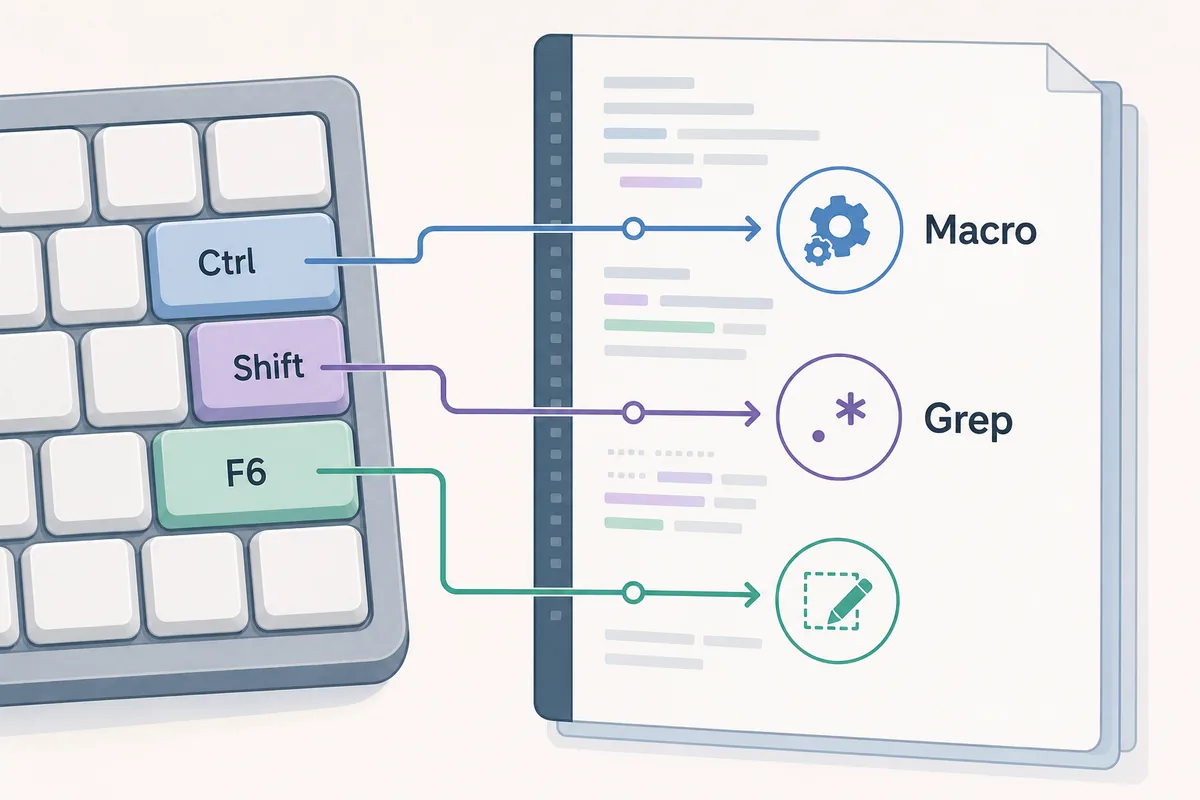
Quick answer: learn the daily workflow keys before the full list
The best first set is not the longest list. Learn the keys that help you search, replace, save, undo, redo, close tabs, run Grep, and trigger stable macros. After that, review your own key assignment screen before customizing anything. This avoids conflicts with operating-system shortcuts, input-method shortcuts, and existing Sakura Editor commands.
| Goal | Shortcut group to inspect | Practical rule |
|---|---|---|
| Speed up search and replace | Find, find next, replace, replace all | Confirm the target with normal search before using regular expressions. |
| Search across files | Grep and open result | Decide folder scope and exclusions before running Grep. |
| Control tabs | Next/previous tab and close tab | Check unsaved files before closing several tabs quickly. |
| Automate repeated work | Record macro, run macro, registered macro | Only assign a shortcut to a routine that gives stable results. |
Sakura Editor shortcuts to learn first
Before reading a full shortcut list, separate your daily work into task groups. Writing and review depend on search and replace. Log inspection depends on Grep. Code or configuration edits depend on tab movement, indentation, and save habits. Repeated edits eventually belong in macros. When the key is connected to a job, it is easier to remember and safer to use.
A practical first set is about fifteen shortcuts. Keep common Windows keys such as copy, paste, undo, and save, then add Sakura Editor-specific search, Grep, macro, and tab commands. Always compare any article list with the official help and your current key assignment screen because local settings can change the defaults.
| Goal | Shortcut group to inspect | Practical rule |
|---|---|---|
| Speed up search and replace | Find, find next, replace, replace all | Confirm the target with normal search before using regular expressions. |
| Search across files | Grep and open result | Decide folder scope and exclusions before running Grep. |
| Control tabs | Next/previous tab and close tab | Check unsaved files before closing several tabs quickly. |
| Automate repeated work | Record macro, run macro, registered macro | Only assign a shortcut to a routine that gives stable results. |
Learn search, replace, and Grep as one flow
Search shortcuts should not be learned as isolated commands. A safer flow is normal search first, then regular expression search if the pattern requires it, then Grep only when the target spans multiple files. This sequence keeps you from widening the search scope too early.
Grep is powerful, but a wide folder scope creates noisy results. Even when you open Grep with a shortcut, choose the search phrase, file pattern, and excluded folders before running it. If replacement follows the search, read the result list and compare changes before saving real files.
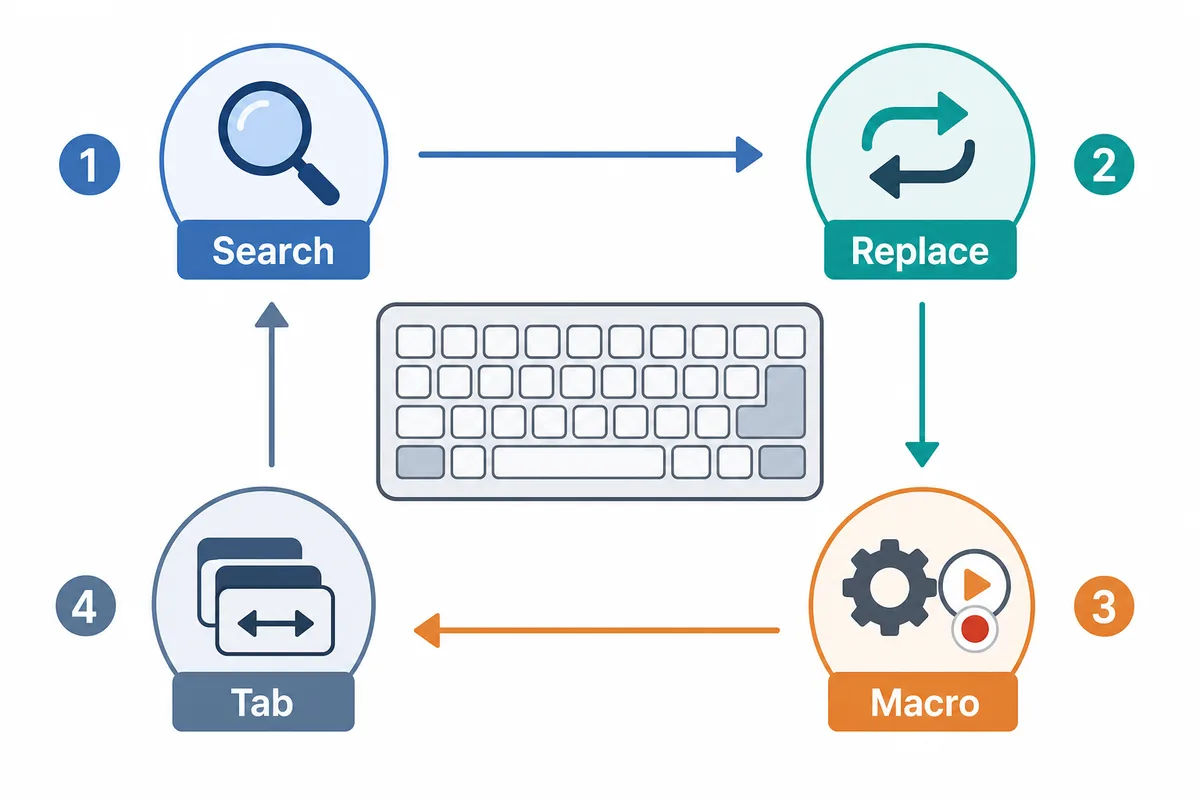
The close-tab shortcut needs a save-state check
Similarweb data showed that “Sakura Editor close tab shortcut” is a distinct search need. The action is simple, but the safe habit is broader: learn close tab together with next tab, previous tab, unsaved markers, and save confirmation behavior.
When you open many logs or configuration files, look at the file name, modified state, and tab order before closing quickly. A closed file is usually easy to reopen, but unsaved edits can cost time. Test the tab keys on sample files before using them in a busy editing session.
What to check before changing key assignments
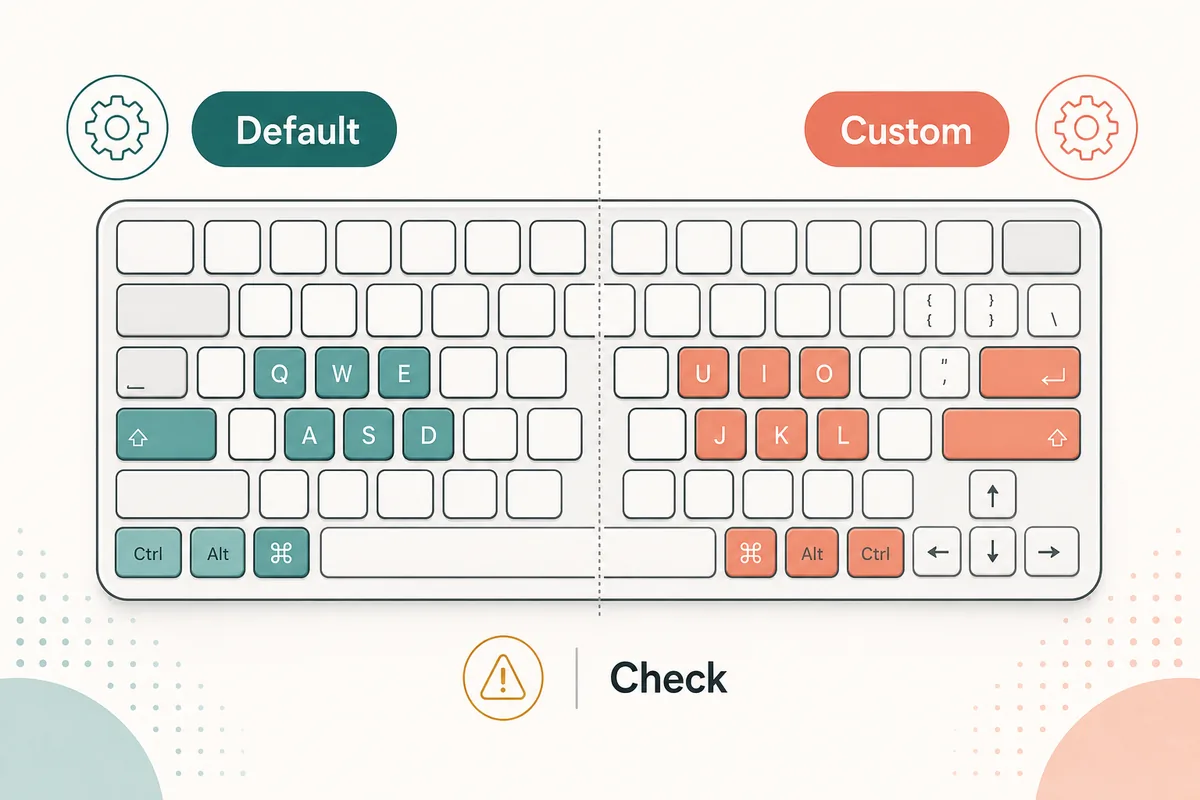
Custom shortcuts can speed up a routine, but unreviewed changes create hidden risk. Check whether Windows, your IME, browser habits, another editor, or an existing Sakura Editor menu already uses the same key. Ctrl, Alt, and Shift combinations are especially easy to conflict with input switching and global commands.
Do not overwrite many defaults at once. Pick three frequent actions, try them for a week, keep the ones you actually use, and revert the rest. If a team shares a machine or procedure, do not write instructions that assume your personal custom keys unless that policy is documented.
Assign shortcuts only to stable macros
A shortcut assigned to a macro can make repeated edits very fast. It can also repeat a mistake very fast when the macro depends on cursor position, selection state, search text, or file type. Before registering a macro, run it against short sample text and verify the output is stable.
Use a recorded key macro for fixed keystrokes. Consider JScript or VBScript only when the task needs conditions, string processing, or regular expressions. The boundary is simple: shortcut keys are for routines you already trust, not for experiments.
Example workflow: reviewing log files
For log review, do not start with replacement. Search the open file for the error phrase, then move to Grep only if the issue spans several files. If the result count is too high, reduce the scope with file extensions and excluded folders.
Next, test any replacement on a sample or copy. If line endings or indentation are part of the edit, use the newline and tab/space tools to preview the transformation, then finish in Sakura Editor when the pattern is clear.
- Confirm the termUse normal search to inspect matching lines and variants.
- Expand to GrepSet folder scope, file patterns, and exclusions.
- Review before replacementUse a sample or copy, then inspect differences.
- Turn stable routines into macrosRegister only the steps that repeat safely.
Common shortcut mistakes to avoid
The biggest mistake is rarely pressing one wrong key. It is acting quickly without checking the target range. Multiple selection, rectangular selection, replace all, and navigation from Grep results can affect far more text than expected.
Another common mistake is assuming the same keys work on a different PC. Version, settings, OS, IME, and keyboard layout can all change the feel of shortcuts. For important work, verify the current key assignment instead of relying on memory.
Frequently asked questions
Frequently asked questions
Where can I check Sakura Editor shortcuts?
Use the official help and the key assignment screen in Sakura Editor. Treat article lists as guidance, not as proof that your local setup still uses the default keys.
Is the close-tab shortcut enough to learn for tab work?
No. Learn close tab together with next tab, previous tab, unsaved-state behavior, and save confirmation.
Can I customize Sakura Editor shortcut keys?
Yes, but check conflicts with Windows, IME, other apps, and existing Sakura Editor commands before changing defaults.
How should search and replace shortcuts work with regex?
Confirm the target with normal search first. Move to regular expressions only when the pattern requires it, and inspect differences before replacement.
When should a macro get its own shortcut?
Only after it produces stable results on sample text and no longer depends on fragile cursor or selection assumptions.