UPDATE GUIDE
How to Update Sakura Editor Without Losing Your Settings
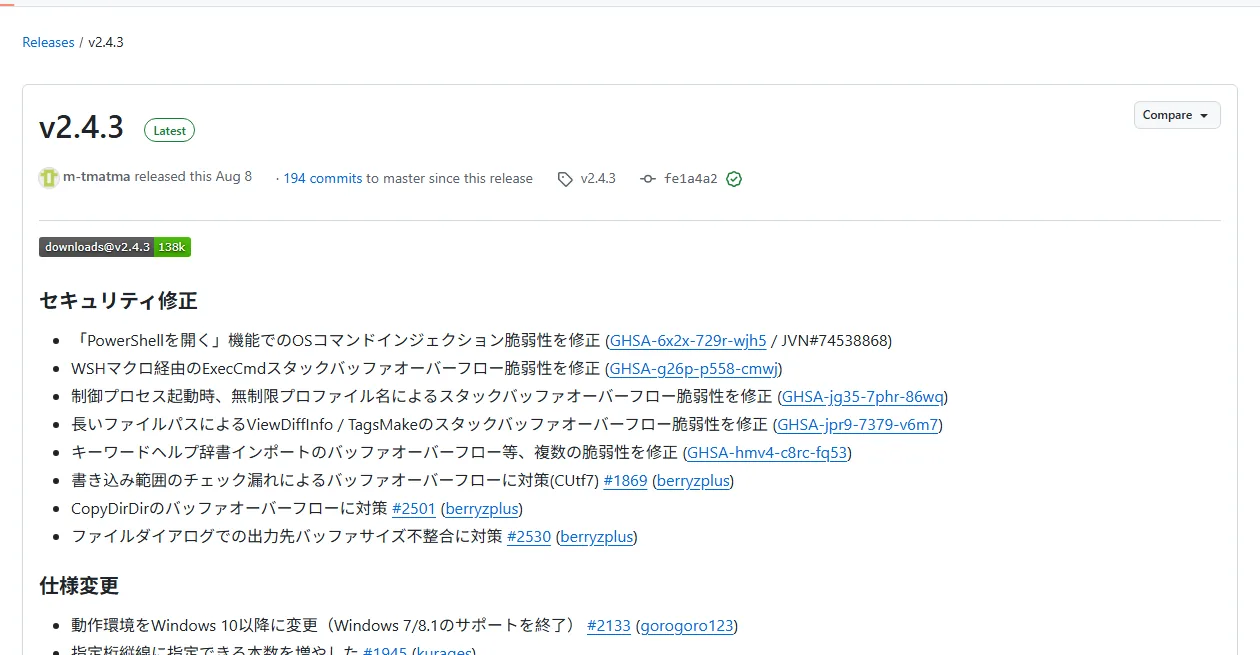
Before updating Sakura Editor, identify the installed version and whether you use the Installer or an extracted Exe ZIP. Copy the settings you rely on, choose the matching asset from the official release, and test the new copy before returning to normal work. The official GitHub release checked on September 23, 2026 was v2.4.3, published August 8, 2026.
Checked 2026-09-23
Short answer: back up first, then follow the installation method you already use
A regular Installer setup and an editor launched from an extracted folder need different update handling. Keeping a copy of the settings and the previous installation makes troubleshooting easier if the new build behaves differently. Version v2.4.3 is the release verified on the date shown here, not a permanent promise that it will remain current.
| Current setup | Update approach | Keep available |
|---|---|---|
| Installed with Installer | Follow the official instructions for the matching Installer asset | Settings copy and install-location note |
| Launched from an Exe ZIP folder | Extract the new Exe ZIP to a separate folder and test it | Old folder and settings backup |
| Setup type is unclear | Check the settings location and sakura.exe.ini first | Path, version, and launch-permission notes |
Check the current release and update source
The official GitHub latest-release endpoint showed tag v2.4.3 on September 23, 2026, with a publication date of August 8, 2026. The two verified official assets were the Win32 Installer ZIP (6,388,224 bytes) and Win32 Exe ZIP (3,513,182 bytes). These are facts for that check date. Release tags, filenames, and sizes can change, so open the official release list again whenever you plan an update.
Updating an existing editor is different from installing Sakura Editor for the first time: the existing settings location and launch method matter. If you cannot tell how the current copy was installed, do not stack an Installer and an Exe ZIP on top of each other. First note the executable location and the settings folder that the running copy actually uses. A shortcut may point to an older folder even when a newer copy is present elsewhere.
| Check | Verified on September 23, 2026 | What to do next |
|---|---|---|
| Official release | v2.4.3, published August 8, 2026 | Recheck the tag before updating |
| Installer asset | Win32 Installer ZIP / 6,388,224 bytes | Use the official install instructions |
| Exe asset | Win32 Exe ZIP / 3,513,182 bytes | Test in a separate folder first |
Back up settings and record the current setup
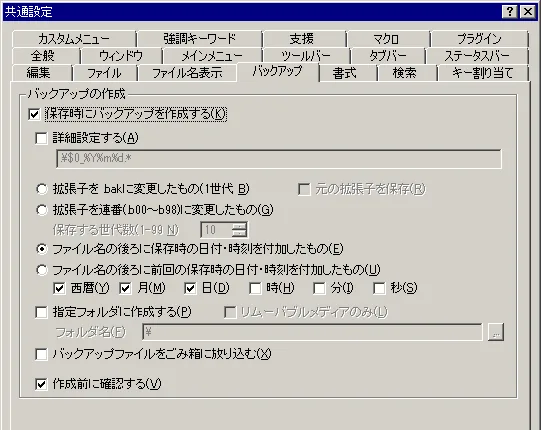
The settings folder may depend on the executable location, Windows permissions, and the configuration mode in use. Check the editor's settings screen and the official help before copying files. Make a short inventory of sakura.ini, sakura.exe.ini, type-specific settings, color files, macros, and dictionaries that you actually use. The similarly named sakura.exe.ini is not interchangeable with sakura.ini; confirm each file's role instead of copying a guessed path.
Close Sakura Editor before making the copy so the application is not writing settings at the same time. Copy the relevant folder to a separate, dated location and record the source path, current version, and whether the copy was installed or launched from an Exe ZIP. Do not treat a successful copy as proof that the new version will use it. After updating, confirm the settings path again before restoring anything.
- Record the settings pathCheck the current settings screen and official help to identify the folder the running copy uses.
- Close and copyExit the editor, then copy the settings and any required macros or dictionaries elsewhere.
- Keep the previous copyDo not remove the old installation or Exe folder until the updated version passes your checks.
Choose the Installer or Exe ZIP that matches your setup
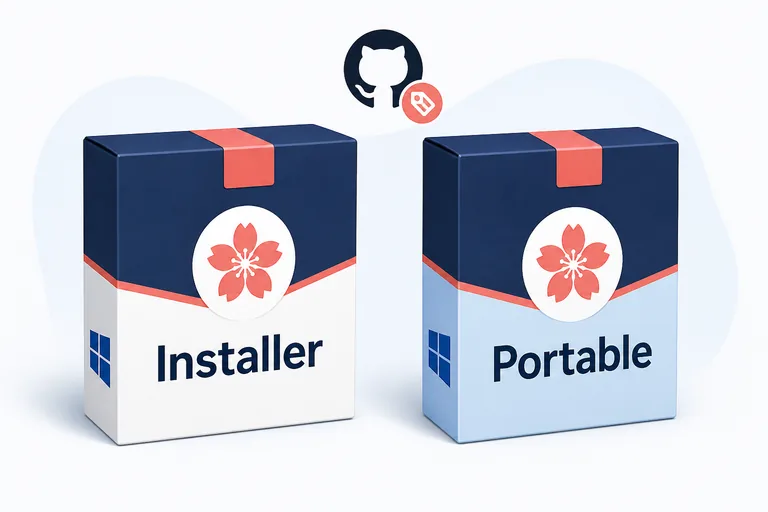
If you normally install Sakura Editor, the official Installer ZIP is the natural starting point. Read the current installation instructions and confirm the destination before running it. If setup offers to remove or replace an older installation, do not proceed until you have verified the settings backup. On a work-managed PC, follow the organization's software and permission rules; this guide cannot determine whether you are allowed to run an installer.
If you launch the editor from an extracted Exe ZIP folder, download the corresponding Exe asset and unpack it into a new folder for the first test. Replacing files in the only working folder removes an easy rollback option. Keep the previous folder until you have checked startup, settings, and file handling. The official filenames use Win32; that label alone does not establish 64-bit support, portability behavior, or where settings are stored.
| Package | A fit when | Check before use |
|---|---|---|
| Installer ZIP | You use a regular installation on the PC | Destination, permissions, and official steps |
| Exe ZIP | You launch Sakura Editor from a chosen folder | New and old folders, executable, settings path |
| Not sure | You do not know the current install method | Identify the shortcut target; do not install both at once |
Update Sakura Editor in three careful steps
Do not apply an unfamiliar archive directly to work files or the only installed copy. Verify the release entry, use the package that corresponds to your current setup, and make the first launch with a disposable text file. The sequence below keeps the source of the new files and the result of the first test easy to review.
- 1. Verify the official releaseOpen the latest release and compare its tag, publication date, asset name, and listed size.
- 2. Apply the matching packageUse the official Installer instructions, or extract the Exe ZIP to a new folder.
- 3. Test before normal workOpen a copy of a small text file and check display, search, and saving before switching back.
Validate the update and roll back carefully if something breaks
Start by opening the version information and confirming that the executable you intended to update is running. Then use a copy of a short text file to check that characters display correctly, search returns the expected result, and saving does not unexpectedly change the encoding or line endings. Test the settings, type-specific options, macros, and dictionaries that are part of your actual workflow. You do not need to exercise features you never use just to complete a checklist.
If a problem appears, stop before saving important files from the new version. Close the editor and note the executable path, old and new versions, settings path, and launch permissions. For an Installer setup, follow the official uninstall or install guidance; for an Exe ZIP, confirm the preserved old folder still launches. Reverting the program files does not necessarily revert settings, so save a second copy of the post-update settings before restoring an older configuration.
| Area | Small test | If it fails |
|---|---|---|
| Version | Open the version information | Confirm the executable path |
| Display and search | Use a copy of a short text file | Do not repeat the test on the original file |
| Saved format | Compare encoding and line endings after saving a copy | Review the diff before accepting changes |
| Settings and macros | Test only items used in your workflow | Check the backup and referenced paths |
Frequently asked questions
Frequently asked questions
How do I update Sakura Editor?
Identify the installed version and setup type, back up the settings you use, and choose the matching asset from the official release. Follow the Installer instructions or test the Exe ZIP in a separate folder, then check a copy of a small file before normal work.
Will updating Sakura Editor delete my settings?
That depends on the install method and settings location, so it cannot be guaranteed either way. Recording the active settings folder and making a separate copy before the update gives you a recovery option.
Does Sakura Editor update automatically?
The release information checked on September 23, 2026 did not verify automatic update behavior. Check the official latest-release page rather than assuming an update notification will arrive.
Is Sakura Editor v2.4.4 available?
The official latest release checked on September 23, 2026 was v2.4.3, published August 8, 2026. Search-volume data for a version query does not prove that a release exists; check GitHub when you update.
Can I delete the old Sakura Editor folder after updating?
Keep it until the new copy starts correctly, your settings are present, and representative files save as expected. A working launch alone does not confirm that rollback or configuration recovery is ready.