Sakura Editor practical guide
Sakura Editor Line Wrap Settings: Right Edge, Column, or Off
Sakura Editor can wrap long lines at the window edge, at a chosen column, or not at all. The right edge is a useful starting point for prose, a fixed column for consistent reviews, and no wrap when horizontal positions matter. First decide whether the change is temporary for the open document or a default for one file type.
Updated: 2026-10-02
Start with the scope: current document or file-type default
Try the right edge for readable prose, no wrap to inspect horizontal alignment, and a specified column when several documents need a consistent width. Before changing a setting, decide whether it should affect only the open document or be saved for a file type.
| Goal | Mode | Useful for |
|---|---|---|
| Fit prose in the window | Right edge | Reading in a resizable window |
| Read at a stable width | Specified column | Reviews and consistent text width |
| Keep horizontal positions | No wrap | Logs, CSV, code, comparison |
Choose a Sakura Editor wrap mode
Wrapping moves a long logical line to another displayed row. It changes the view; by itself it does not insert a newline in the saved file. Choose a mode based on how you read, not on an assumption about stored text.
Official help describes no wrap, wrapping at the right edge, and wrapping at a specified column. Menu wording and temporary controls can differ by version or translation. Check your installed help and the actual settings screen.
Official help notes a 10240-column limit: even the no-wrap setting wraps at that boundary. Keep this limit in mind for exceptionally long lines.
Follow the reading area
Keep a stable width
Preserve horizontal position
Change wrapping for the open document
A temporary change helps when one document needs a different view. Turn wrapping off to inspect a long log row, then return to the right edge when reading prose. This adapts the view without changing the default for every document.
Keep a current-document change separate from type-specific settings. Another file may use a different mode. Note the active tab, file type, and current choice before diagnosing why a setting appears not to work.
- Select the documentActivate the tab and note its current wrap mode.
- Choose a temporary modeUse the temporary wrap option documented for your version.
- Check the saved resultInspect a copy or diff if stored line endings matter.
Set a file-type line-wrap default
If files of one type should open with a consistent view, use the type-specific settings instead of relying on a one-off change. The official example shows wrap method and wrap column in the Screen settings for a selected type.
The preference is linked to a file type. A different extension or selected type may use another value. Confirm the target type, save the preference, and test a representative document. Screen labels can vary by release.
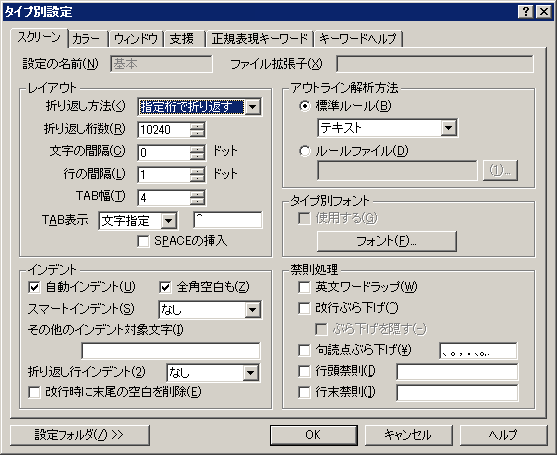
- Choose the typeOpen Type-specific settings and select the target file type.
- Open Screen settingsChoose the wrap method for that type.
- Save and testCheck the column, save, and verify with a representative file.
Understand the wrap column and right edge
The official help lists 10–10240 as the type-specific wrap-column range. This is a supported range, not a recommendation for every file. Try a short representative document and balance readability against horizontal scrolling.
Choose a column you can read
Tabs, full-width characters, and font metrics can make visual positions differ from a simple character count. Use the right edge when the view should follow the window; use a specified column when you need a stable reference width.
Separate the temporary toggle from right-edge mode
The temporary wrap-column control can switch among the window edge, the maximum (10240), and the type-specific value. To keep following a resized window, choose the right-edge method itself.
Visual wrapping is not a saved newline
A line shown on two screen rows can remain one logical line in the saved file. Visual wrapping is different from inserting, replacing, or normalizing newline characters.
When CSV imports, forms, programs, or log tools depend on line length, inspect a copy or diff instead of judging the saved data from the screen. A wrap preference does not convert line endings.
Troubleshoot wrap settings
If a change seems ineffective, check the active file type and wrap mode before changing the column value. Type-specific values and temporary settings can have different scopes.
Tabs, wide characters, fonts, and window resizing can affect the apparent wrap point. For tables or code, temporarily turn wrapping off and compare a small copy so the working file stays untouched.
Frequently asked questions
Frequently asked questions
How do I turn off wrapping in Sakura Editor?
Choose no wrap in the temporary setting or in the selected type's settings. Decide whether you are changing one document or a default.
Can right-edge wrapping be the default?
If the selected type offers it in Screen settings, save it as that type's preference. Confirm labels in the installed help.
What wrap column should I use?
It depends on the file and reading area. Official help lists 10–10240 for a type-specific column, but no value suits every workflow. Test a copy.
Does visual wrapping add a newline to the saved file?
No; display wrapping is separate from inserting newline characters. Inspect a copy or diff if exact saved rows matter.
How does the right edge differ from a specified column?
The right edge follows the window width. A specified column uses a chosen reference width even after resizing.