Sakura Editor workflow guide
How to Use Sakura Editor Grep: 7 Steps for Safer Multi-file Search
Sakura Editor grep is for searching across many files instead of only the document currently open in the editor. It is useful for logs, source code, configuration files, CSV exports, and documentation sets. The risk is that a broad search can produce noisy results or miss files when the scope, encoding, or pattern is wrong. This guide gives a practical sequence: start small, define the file scope, test the phrase or regex, read the results, then decide whether editing or replacement is safe.
Updated 2026-07-15
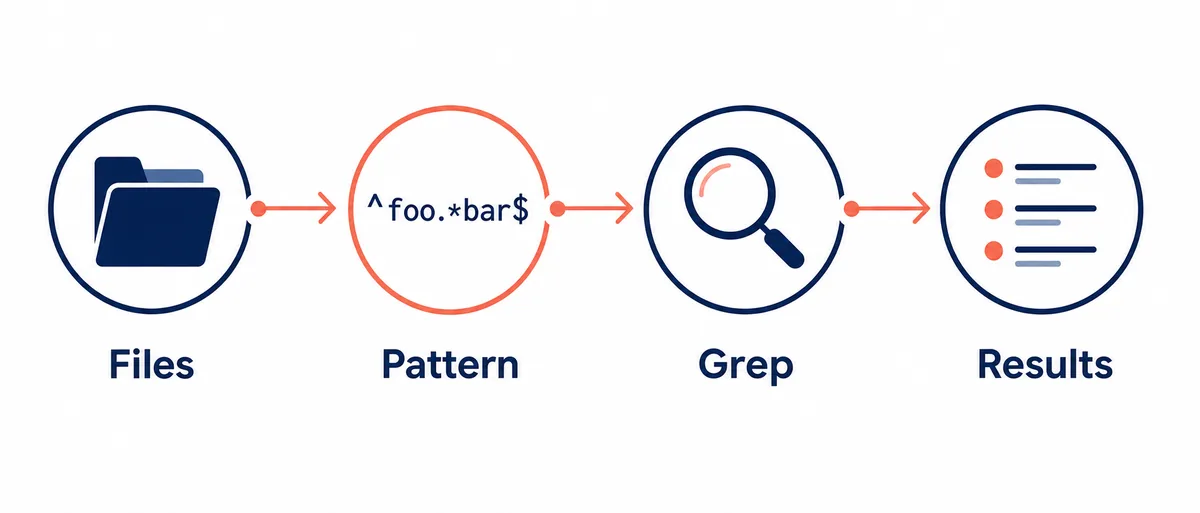
Quick answer: start with a small scope, then expand
The safest grep workflow is not to search the whole machine first. Pick a folder, choose the file types, exclude generated or backup directories, and test the search phrase in a small sample. If you need regex, verify the pattern on a short text before applying it to real project files. This keeps the result list readable and makes mistakes easier to trace.
| Decision | Recommended setting | Why it matters |
|---|---|---|
| First scope | Small folder or a few files | You can understand the match count and noise |
| Search phrase | Begin with plain text | It avoids regex mistakes too early |
| File mask | *.txt; *.log; *.js | It keeps binary and generated files out |
| Exclusions | build, node_modules, backup | It shortens the result list |
What Sakura Editor grep is good for
Grep lists matching lines from files under a selected folder. Compared with Find inside one document, it is better for checking old names, configuration keys, function calls, error strings, and repeated labels across a project.
Grep does not understand your project structure automatically. The quality of the result depends on the phrase, encoding, line endings, file mask, and folder scope. Before running it, write down the job in one sentence, such as “find every config key named timeout” or “find logs containing ERROR 503”.
Prepare the search condition
Start with a plain phrase when possible. A function name, setting key, log token, or fixed label is easier to verify than a complex expression. After you know the expected matches, move to regex only if plain text cannot express the condition.
Choose the file scope before the pattern becomes complicated. Separate source, logs, documents, and generated output. Backup folders, build output, dependency folders, and images usually add noise, so exclude them early.
- Choose the folderStart narrow and expand only when needed.
- Keep the phrase shortPrefer stable keys, names, or tokens over long sentences.
- Set a file maskUse patterns such as *.txt or *.js to avoid irrelevant files.
- Review and adjustToo many matches means scope or exclusions need work; no matches means check spelling, encoding, or file type.
Use file masks and exclusions deliberately
A good grep result is often created by file scope, not by a clever expression. Decide whether you are searching source files, logs, notes, or exported data. Smaller scopes make the result list readable.
If grep results will lead to edits, exclusions matter even more. Matching an old backup or generated file can send you to the wrong place and may cause unintended edits later.

Regex examples that fit grep searches
Regex is useful when you need structure: line starts, numeric IDs, optional spaces, or a choice such as TODO or FIXME. Keep the expression small and test it before using it on a large folder.
The browser tester on this site uses JavaScript regular expressions, while Sakura Editor has its own implementation details. Use the tester to reason about a pattern, then confirm the final result in Sakura Editor itself.
^ERROR\s+\d{3}
TODO|FIXME
^[^#].*server_nameRead the result list before acting
Read file name, line number, and the matching line separately. If matches are concentrated in one file, the fix may be local. If they appear across many folders, you may be looking at a naming or policy issue.
When nothing appears, check spelling, full-width versus half-width characters, case sensitivity, line endings, encoding, extension filters, and whether the target file was saved.
Common failures and fixes
If the result list is too long, do not make the regex more complex first. Tighten folder scope, file masks, and exclusions.
If the result list is too short, shorten the phrase and search variants separately. Mixed Japanese, ASCII, and symbols can look identical while using different characters.
| Symptom | Check | Practical fix |
|---|---|---|
| Too many matches | Folder, mask, exclusions | Exclude build and backup; limit to *.log or source types |
| No matches | Phrase, case, encoding | Use a shorter phrase and confirm saved files |
| Regex mismatch | Metacharacters and escaping | Test on a small sample first |
Frequently asked questions
Frequently asked questions
How is Sakura Editor grep different from normal Find?
Find usually focuses on the current document. Grep searches across files in a folder and returns matching lines with file names and line numbers.
Can Sakura Editor grep use regular expressions?
Yes. Use regex when plain text is not enough, but test complex patterns on a small sample first.
Should I replace text directly from grep results?
Be conservative. Confirm exclusions, count the matches, keep a backup or Git recovery path, and review a diff before broad edits.
Why does grep return no results?
The folder, file mask, case, full-width characters, line endings, encoding, or unsaved files may be different from what you expect.
Which file mask should I start with?
Use the extension closest to the job: *.log for logs, *.ini or *.json for settings, and *.txt or *.md for documents.