Sakura Editor practical guide
Sakura Editor macro guide: record, save, register, and script safely
Use a key macro when you repeat the same edit steps. Move to a JS or VBS macro when the task needs conditions, string checks, search, or replacement logic. This guide gives the decision path before you run a macro on real files.
Updated: 2026-07-13
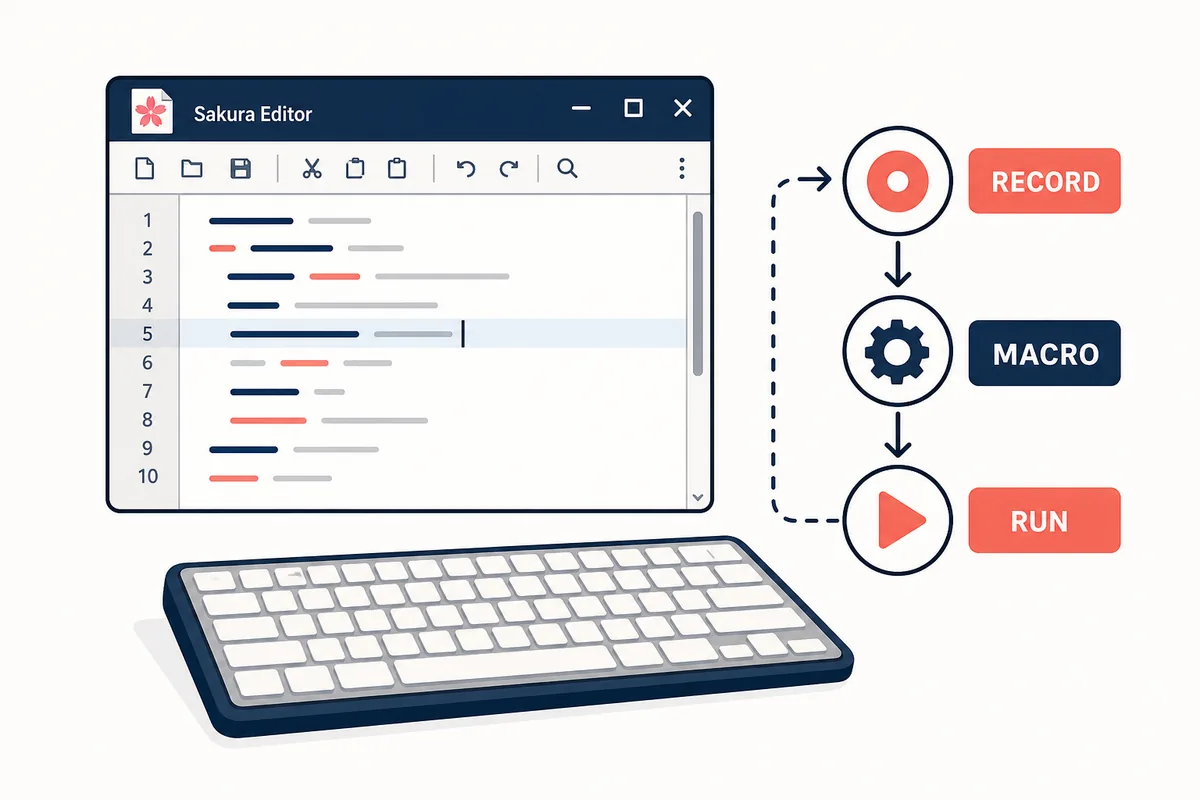
Quick answer: choose the macro type by the job
A Sakura Editor macro is not one single workflow. Use a recorded .mac file for repeatable keystrokes, use .js when you need text logic or regular expressions, and use .vbs only when that fits an existing Windows scripting habit. The safest path is to test the edit on sample text, save the working macro, then register it for menu or shortcut use.
| Goal | Best format | Decision rule |
|---|---|---|
| Repeat fixed editing steps | .mac key macro | The same cursor movement, insertion, or menu action works every time. |
| Check or transform selected text | .js WSH JScript | You need string handling, conditions, loops, or regular expressions. |
| Fit a VBScript-based Windows workflow | .vbs WSH VBScript | The team already maintains simple VBScript automation. |
| Run a frequent action fast | Registered macro | The macro is stable enough to assign to a menu item or shortcut. |
What Sakura Editor macros can do
Macros reuse editing work that would otherwise be repeated by hand. The official help describes both recorded key macros and directly written macro files, so the feature covers quick personal shortcuts as well as more deliberate text-processing scripts.
This site is useful before a macro touches a real file: test regular expressions, line endings, tab-to-space conversion, or duplicate-line cleanup in the browser first. When the expected result is clear, move only the proven rule into Sakura Editor.
Record, save, and run a key macro
Start with a short sample document, not a production file. Include normal rows, blank rows, trailing spaces, and a final line without a newline if those cases matter. A macro that survives this small sample is less likely to surprise you later.
Keep the recorded action minimal. Avoid mouse-position-dependent steps when possible, and replay the macro once in the same file and once in a changed sample before saving it.
- Prepare sample textUse a short file with success cases and likely edge cases.
- Record only the needed actionKeep the macro focused on the operation you want to repeat.
- Replay and compareRun it on the first sample, then on a slightly different one.
- Save and registerRegister only stable macros and assign shortcuts carefully.
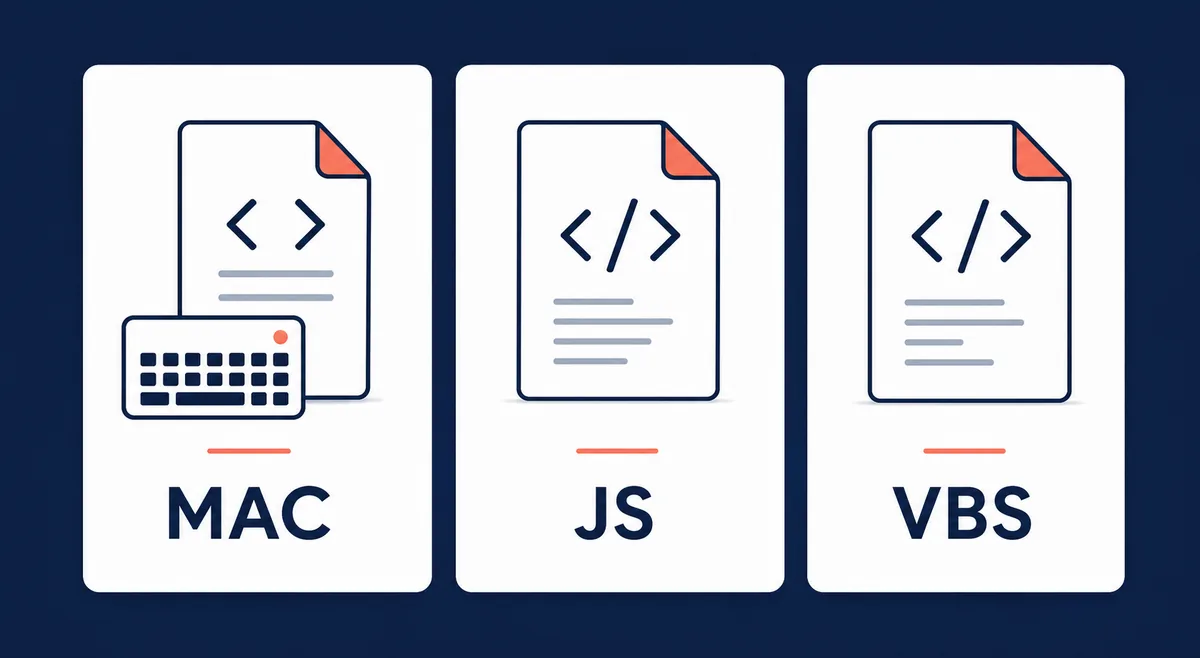
Choose .mac, .js, or .vbs
Sakura Editor uses the file extension to decide how a macro should run. A .mac file is best for recorded key actions. A .js file is usually easier to read when the macro must inspect selected text, run a loop, or apply a regular expression. A .vbs file is reasonable only when VBScript is already familiar in your environment.
Script macros can depend on the editor state, selected range, file encoding, and Windows script settings. Put the assumed input and a rollback note in a comment at the top of shared macros.
| Goal | Best format | Decision rule |
|---|---|---|
| Repeat fixed editing steps | .mac key macro | The same cursor movement, insertion, or menu action works every time. |
| Check or transform selected text | .js WSH JScript | You need string handling, conditions, loops, or regular expressions. |
| Fit a VBScript-based Windows workflow | .vbs WSH VBScript | The team already maintains simple VBScript automation. |
Search and replace before automation
Search and replace macros are powerful because they can alter many lines at once. Before automating them, confirm the pattern, replacement text, match count, case sensitivity, and line-ending behavior on disposable text.
If the macro should affect only the selected range or skip non-matching lines, script it explicitly. That makes the rule easier to review than a long recorded sequence of dialog actions.
// Example idea only: test the pattern before running it on real files
var text = Editor.GetSelectedString(0);
if (text !== "") {
  Editor.InsText(text.replace(/old/g, "new"));
}Register macros and assign shortcuts
A saved macro becomes much easier to reuse when it is registered in the common macro settings. Registered macros can appear in the menu and can be paired with keyboard shortcuts, which is useful for daily cleanup tasks.
Use clear names such as normalize-csv-tabs.js or insert-review-header.mac. If a team shares the macro, document the file location, shortcut, target files, and restore procedure.
Troubleshooting checklist
When a macro fails, check the registration path, extension, encoding, selected range, and Windows scripting restrictions before rewriting the whole file. Encoding is especially important when Japanese text appears inside the macro.
Reduce a failing script to the smallest working action, such as inserting plain text. Then add selection handling, search, replacement, and external calls one at a time.
| Goal | Best format | Decision rule |
|---|---|---|
| Macro not listed | Common settings > Macro | Wrong folder, relative path, or filename |
| Garbled text | Encoding at save time | Shift_JIS and UTF-8 BOM assumptions differ |
| Wrong matches | Pattern and selected range | Regex, case, line endings, or scope mismatch |
| JS/VBS fails | Windows script environment | WSH restriction, extension mistake, or function-name typo |
Safety checks before running on real files
Before a macro touches real data, decide the input, target range, save location, and rollback path. This matters most when several files are open or when you jump from grep results to an editor window, because the active document may not be the one you think it is.
A practical routine is to save the original file under a new name, create a small copy in the same folder, and run the macro on that copy first. CSV files, configuration files, and logs often look safe in the editor, but one invisible line-ending or tab change can affect the next tool in the workflow.
Name macros with a verb and a target, such as cleanup-trailing-spaces.js, insert-review-header.mac, or convert-tabs-to-spaces.js. Clear names make the registered macro menu safer because you can understand the action before pressing a shortcut.
For shared macros, add a comment block that states the expected input, the files it should not touch, the tested Sakura Editor version or environment, and the restore step. That small note is more useful than a clever script when someone has to debug the macro months later.
Frequently asked questions
Frequently asked questions
Are Sakura Editor macros beginner-friendly?
Yes. Begin with a recorded key macro and test it on a tiny sample.
Should I use .mac or .js?
Use .mac for fixed keystrokes and .js when the macro needs conditions, selected-text handling, or regular expressions.
Can a macro automate search and replace?
Yes, but test the pattern and scope before running it on real files.
Why register a macro?
Registration makes a stable macro available from the menu and easier to bind to a shortcut.
What should I check when a macro fails?
Check extension, path, encoding, selected range, and Windows scripting restrictions first.