Sakura Editor practical guide
Sakura Editor outline extraction: rules and text export
Sakura Editor outline extraction builds a tree from headings, functions, or labels and lets you jump back to the matching line. Start by checking the file type and its outline rule. An outline is on-screen navigation; a tag jump list is a keyword-based result list; exporting either list is a separate operation. Keeping those jobs separate makes troubleshooting much easier.
Updated: 2026-10-18
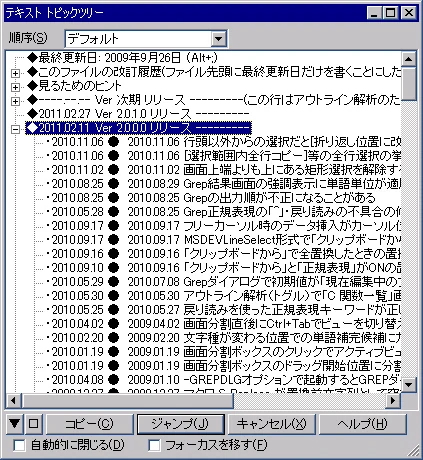
Quick answer: outline for structure, tag jump for lookup, export as a separate step
When people search for Sakura Editor outline extraction, they may want a navigable tree or a saved list of headings and line numbers. Outline analysis shows a hierarchy inside the editor. The keyword tag jump list shows matching tags and locations. Neither should be assumed to be an automatic Markdown or CSV export, so decide the desired output before choosing copy, a macro, or an external script.
| Goal | Feature to start with | Decision clue |
|---|---|---|
| Browse document structure | Outline / text topic tree | You need headings or functions in a hierarchy |
| Jump to definitions or labels | Keyword tag jump list | You need keyword, kind, line, or file columns |
| Keep a list in another file | Copy, macro, or external processing | You need a controlled output format |
| Find why the tree is empty | Type settings and rule file | Check extension, type, rule, then sample text |
Outline extraction versus the tag jump list
An outline is a second view of the open document. It can expose headings, functions, labels, or dated log sections as a tree, so selecting an item moves the caret to its source line. It changes how you navigate; it does not rewrite the document or create a new text file.
The keyword tag jump list is a lookup result. It can show a keyword, kind, line number, and file name, then open the selected location. The official help describes keyword tag jump as a different task from building an outline hierarchy. Use the outline when you need the document map and tag jump when you need a definition or label search.
| Comparison | Outline | Tag jump list |
|---|---|---|
| Input | Open file and type-specific rules | Keyword and tag search conditions |
| View | Nested tree | Rows with kind, line, and file |
| Best for | Headings, functions, chapters | Definitions, labels, exact terms |
| Saving | Display first; save separately | Select or copy rows separately |
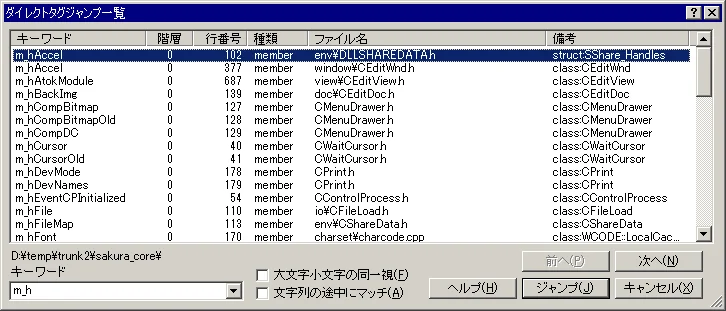
Check the file type and outline rule first
If the outline is empty, do not edit a rule file immediately. Confirm the type-specific setting applied to the current document. An unexpected extension, a generic text type, or a missing language rule can all produce an empty tree. Reproduce the issue in a small copy containing two or three headings or functions.
The official help keeps keywords, colors, and outline rules by file type. A rule that recognizes C++ functions will not automatically understand Markdown headings. Record the extension, selected type, and rule name before moving the same setup to another PC.
- 1. Make a small copyUse a sample instead of the production file and include only a few target lines.
- 2. Match the typeCheck that the extension and type-specific setting describe the intended language or document.
- 3. Open the outline viewShow the outline or text topic tree and check whether nodes are created.
- 4. Record the ruleNote the rule name and location before adding a custom pattern.
Tune outline items with a rule file
If the built-in rule misses a needed item, check the rule-file format and the type that loads it. A rule decides which lines are headings, functions, or labels; it is not a macro that edits the document. Copy a known example before editing and keep the original available for rollback.
Add one pattern at a time and inspect the hierarchy, label, and destination line. A large expression can match unrelated lines or slow analysis. Save the rule location and its target type so the same configuration can be backed up with the type settings.
[outline-rule]
name=Heading
pattern=^#{1,6}\s+(.+)$
level=1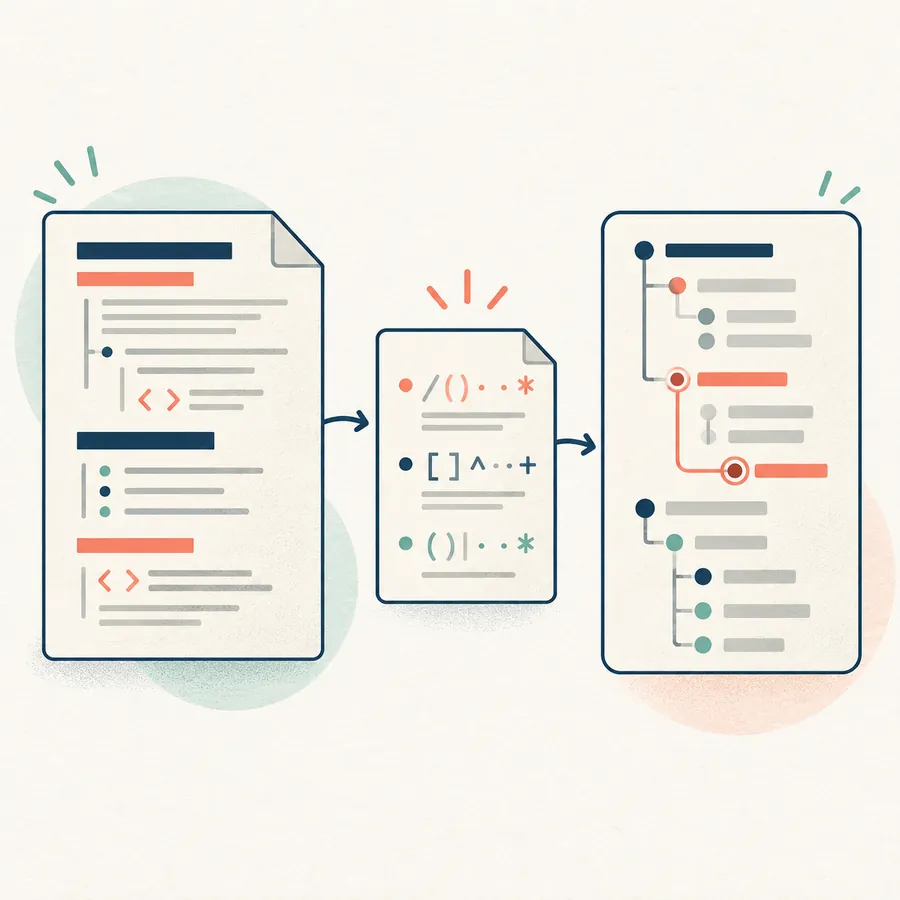
A small sample with headings, functions, or labels
One pattern matched against the intended type
Hierarchy and jump destination checked together
What “outline list to text” really means
The phrase “outline list text export” can mean a screenshot, copied headings, or a reusable report with line numbers. The outline view should not be assumed to generate Markdown or CSV automatically. The range that can be selected, the rows copied from a tag jump list, and a macro or external parser can all produce different results.
For a one-off record, a screenshot or manual copy may be enough. For a repeatable list, define the heading syntax, extract it with a controlled macro or script, and compare the output with the source copy. Line numbers become stale after edits, so store the creation date and source revision with any exported list.
| Needed output | Practical option | Caution |
|---|---|---|
| Visual structure | Outline view or screenshot | This is not a saved text tree |
| Heading names | Select, search, or macro | Check hierarchy and duplicates |
| Rows with locations | Copy tag jump rows | Line numbers change after edits |
| Recurring report | Fixed rule and external script | Record encoding, line endings, and source version |
When the outline is empty or inaccurate
For an empty tree, check extension and type, rule-file location, and the syntax of the target lines in that order. If headings appear but functions do not, the function syntax may be outside the built-in pattern or the wrong language type may be active. Refresh with a copied file or switch the type away and back so the test remains small.
For duplicate nodes, a wrong level, or garbled symbols, inspect level settings, capture groups, and file encoding. First restore the standard rule, then add one custom line. This keeps the rule and the document from changing at the same time.
| Symptom | Check order | Next action |
|---|---|---|
| Empty tree | Extension → type → rule | Reopen a small sample |
| Missing items | Syntax → pattern | Add one pattern and compare |
| Duplicates or wrong levels | Level → capture range | Return to the standard rule |
| Jump lands on the wrong line | Line number → save state | Reproduce from a saved copy |
Summary: match the outline tool to the job
Sakura Editor outline extraction is a navigation view that turns headings, functions, or labels into a tree. Match the file type and rule before customizing anything. The tag jump list is a separate keyword lookup, and neither feature should be treated as a guaranteed text export.
When a saved report is required, choose the output format, line-number policy, encoding, and source version first. Test on a copy, read the diff, and only then apply the rule or automation to the working file.
Frequently asked questions
Frequently asked questions
What is Sakura Editor outline extraction?
It parses headings, functions, or labels from the open document and shows them as a tree that jumps back to source lines. It is a navigation view, not an automatic text-file export.
Can I export the outline list to text?
A guaranteed one-click export should not be assumed. Use selection and copy, copy rows from the tag jump list, or a macro or external script that matches the required output, then verify the result on a copy.
Why is the Sakura Editor outline empty?
Common causes are a mismatched extension and type, no rule for the language, a wrong rule-file path, or syntax outside the active pattern. Check type, rule, and sample text in that order.
How is outline different from tag jump?
An outline shows document structure as a hierarchy. Tag jump searches for tags or keywords and lists locations. Choose the first for a map of the document and the second for definitions or labels.
What should I check before editing a rule file?
Copy the original, confirm the target type and storage location, add one pattern, and compare the resulting nodes and line destinations before expanding the rule.
Is the concept diagram an official screen?
No. It is an explanatory diagram for the source-rule-tree relationship. The official screenshots are identified in their captions; use the help for the exact labels in your installed version.