Sakura Editor practical guide
Sakura Editor clickable URL settings: a practical setup guide
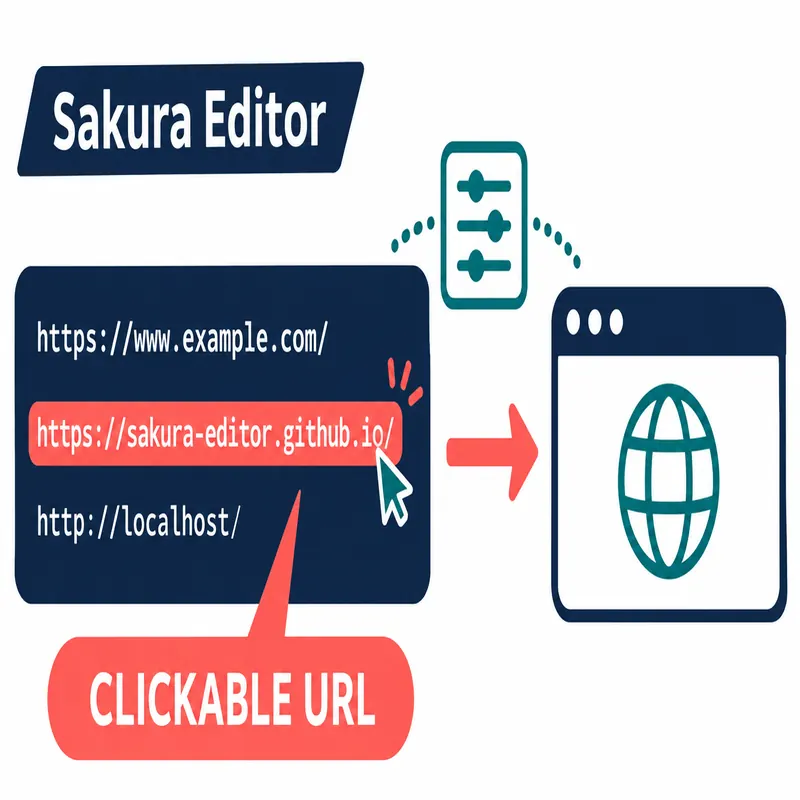
When a URL will not open in Sakura Editor, or when URL text should not look clickable, start with the file type's Color settings rather than changing global editor options. The official help calls this feature Clickable URL: recognized URL text is colored and passed to a Windows associated application after a double-click. Separating display, clicking, regex keywords, and Windows associations makes the problem easier to isolate.
Updated 2026-11-08
Quick answer: check URL color and opening behavior separately
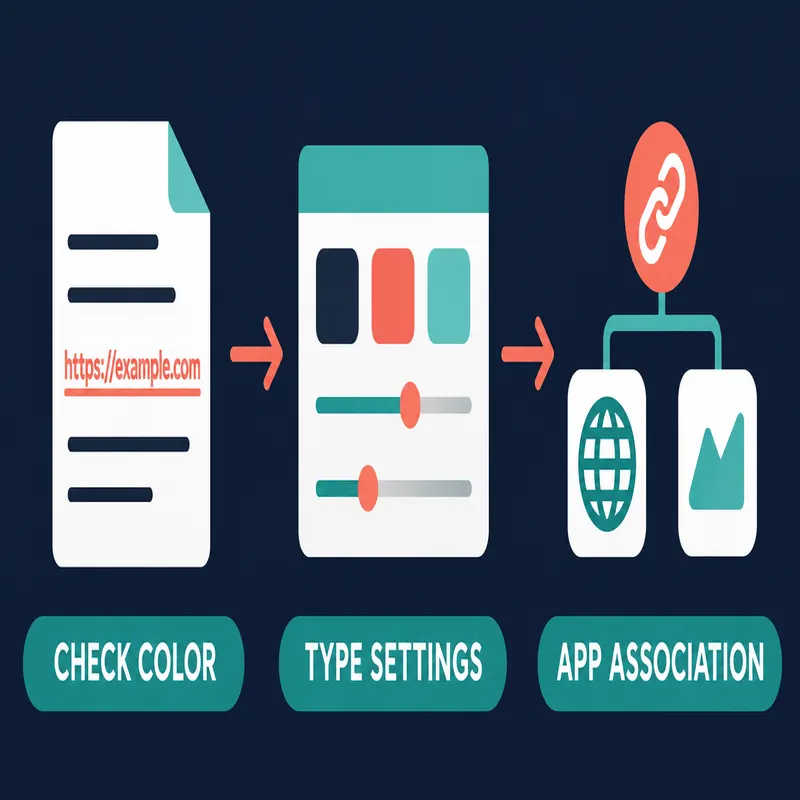
For Sakura Editor clickable URL settings, check three things in order: whether the URL is colored in the current file type, whether you are double-clicking the URL, and whether Windows has an associated application for that scheme. The official help says that turning URL coloring off also disables Clickable URL. That is different from changing a color that is simply hard to read.
| Problem | First place to check | Decision point |
|---|---|---|
| URL looks like ordinary text | Type-specific Color settings | URL coloring off also disables the click feature |
| URL is colored but does not open | Double-click and Windows association | No associated application means it cannot open |
| A custom string should act like a link | Type-specific Regex keyword settings | Test the pattern on a small copy |
| Only some files behave differently | The current file type | You may be editing a different type's settings |
What is a clickable URL in Sakura Editor?
In the official help, Clickable URL recognizes URL text and sends it through the Windows shell to the application associated with that scheme after a double-click. The documented examples include http://, https://, mailto:, ftp://, and file://. This is an editing aid for opening text, not an HTML anchor creator and not a feature that publishes a web page.
The URL display color is controlled by the URL item in a file type's Color property. Because the help links URL coloring and Clickable URL together, disabling the color classification also disables the click behavior. The active file type matters: a setting changed for Markdown may not change a plain-text or source-code document.
| Element | Role | Common confusion |
|---|---|---|
| URL recognition | Treat a known URL form as a link candidate | Any sentence is not automatically a URL |
| Color setting | Show URLs in a different color | Turning it off also stops Clickable URL |
| Double-click | Pass the URL to an associated application | A single click or selection is different |
| Regex keyword | Treat a custom pattern in the same way | A broad pattern can match unintended text |
How to enable or stop clickable URLs
Start with a copy of the document and place one short test URL such as https://sakura-editor.github.io/ on its own line. Confirm the current file type, open its type-specific settings, and find the URL entry under the Color property. Once the URL is colored, double-click the copy and check whether the expected browser or application starts.
If you want to stop clickable URLs, the official help documents turning URL coloring off. If the real problem is an overly bright color, changing the URL color may be a better fit than disabling the feature. After changing a setting, test another file type so a local adjustment does not silently become a wider workflow change.
- 1. Make a test copyUse a short duplicate document instead of a production file.
- 2. Confirm the file typeOpen the type-specific settings for the current extension.
- 3. Check URL in ColorConfirm that URL coloring is enabled, then adjust only the color if readability is the issue.
- 4. Test a double-clickCheck the associated application before changing more Sakura Editor settings.
Use regex keywords for custom link-like text
The official help also describes a Regex keyword property that can treat an arbitrary pattern like a Clickable URL. This can help with an internal ticket identifier or a URI-like notation, but the value still needs a meaningful target and a Windows association that can handle it.
Keep the first pattern small. Test escaping, full-width and half-width symbols, punctuation at the end of a sentence, and multi-line matches on a few copied lines. This differs from the site's regex tester: here the expression changes which text is presented as clickable, so an overly broad pattern can create accidental launches.
What to check when a URL will not open
If no color appears, check the URL form, the active file type, and the Color setting. A character before https://, sentence punctuation included at the end, or a change saved to another type can alter recognition. A one-line test URL helps separate document formatting from editor configuration.
If the URL is colored but does nothing, confirm that the operation is a double-click and then check the Windows default browser or other associated application. file:// and custom schemes may be unregistered or restricted in a particular environment. Before repeatedly changing Sakura Editor settings, paste the same URL into another address field to confirm that the URL itself is valid.
| Symptom | Separate the cause | Next action |
|---|---|---|
| No color | Format, file type, and Color setting | Retest with a short URL in the current type |
| Color but no response | Double-click versus selection | Repeat the test on a copied line |
| No browser is chosen | Windows association | Check the default application before retrying |
| Only a custom scheme fails | Regex and scheme registration | Use a narrow pattern and a safe sample |
Checklist before keeping the setting
Record which file type you changed before saving the setting. Changing URL color, regex keywords, background, and selection colors at once makes it hard to tell what affected the click behavior. Change one item, restart Sakura Editor, and repeat the same test text so the result is reproducible.
When settings are shared with a team, note the Sakura Editor version, the settings location, the URL forms that should be recognized, and the rollback method. Menu names can vary by version. If an item is not where the guide expects it, confirm the help version and the active type before editing another configuration file.
- Keep a backupCopy the relevant settings or type-specific configuration before editing.
- Change one thingKeep color, regex, and associations separate so the cause remains traceable.
- Retest after restartUse a new document after restarting, not only the document that was already open.
- Leave a short noteRecord the file type, URL form, associated app, and rollback path.
Is the URL colored in the active file type?
Does a double-click send the text to the expected app?
Does Windows have an app for the URL scheme?
Frequently asked questions
Frequently asked questions
Where are Sakura Editor clickable URL settings?
Open the type-specific settings for the current file and check the URL item under the Color property. The official help says that turning URL coloring off also disables Clickable URL.
Can I keep the URL color but disable only the click?
The official help documents disabling Clickable URL by turning URL coloring off. If your version has no separate click-only option, check its settings and use a workflow rule before relying on a color-only workaround.
Why will a Sakura Editor URL not open?
The URL form, active file type, double-click operation, or Windows default application may be different from what you expect. Test a short copied URL and check each layer in that order.
Can custom text be made clickable?
The official help describes Regex keyword settings that can treat an arbitrary pattern like a Clickable URL. Keep the expression narrow and test it on copied text first.
Is Sakura Editor clickable URL the same as an HTML hyperlink?
No. It is an editor aid that passes recognized text to an associated application. It does not create an HTML anchor or publish a link target.