Sakura Editor practical guide
Sakura Editor Search and Replace: 7 Safe Steps from Scope to Regex
The safest Sakura Editor search and replace workflow is to fix the scope first, search without changing text, and only then replace. A replacement in the current file is different from a multi-file Grep search or a line-ending conversion, even when the dialog looks similar. This guide joins the practical steps: choose the document or selection, check matches, decide between literal text and regular expressions, test on a copy, review the diff, and save only after the file still matches its format.
Updated 2026-10-25
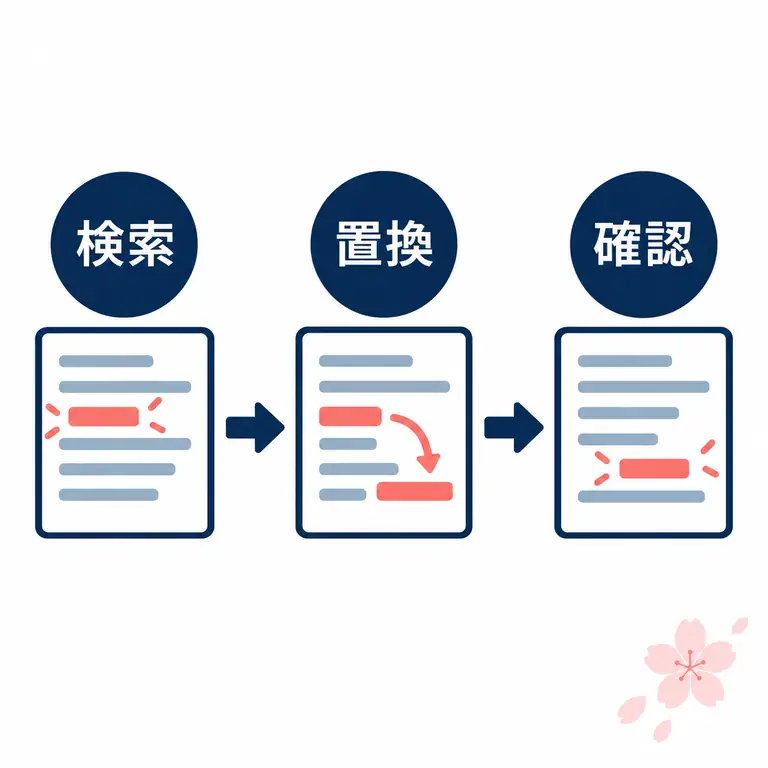
Start here: narrow the scope before replacing anything
For Sakura Editor search and replace, the first decision is where a change is allowed. Choose the current document, a selected range, or a Grep folder before you choose a pattern. Use literal search for a fixed term and regular expressions for a repeatable shape. A short copy lets you compare match count, context, line endings, and encoding before the real file is changed.
| Goal | Best fit | Check first |
|---|---|---|
| Find one fixed term | Literal search | Case, width, and scope |
| Change a repeated shape | Regex replace | Match count and groups |
| Change only selected text | Selection replace | Selection is still active |
| Search many files | Grep | Folder, extension, exclusions |
On this page
Decide what the search is allowed to changeA safe seven-step search and replace workflowLiteral search versus regular expressionsPractical replacement examples for logs, CSV, and settingsSelection, current file, and Grep are different scopesWhen search or replacement does not workReview the file before savingDecide what the search is allowed to change
Sakura Editor search and replace finds text in the document that is currently open and can substitute another value. Make a working copy first, then decide whether comments, examples, generated lines, and hidden-looking whitespace are part of the change. Logs, CSV files, and configuration files often reuse similar text for different meanings, so inspect examples near the start, middle, and end before selecting the whole file.
Search and replace may share a dialog, but they have different risk. Search only reports matches; replace edits the document. Run search first and read the surrounding context before pressing Replace All. When several files are involved, move the decision to Grep and design the folder, file pattern, and exclusions instead of treating a multi-file task as a larger current-file replacement.
| Check | Question | Decision |
|---|---|---|
| Scope | Only this file? | Use current-document search |
| Change | Should content be edited? | Inspect matches before replace |
| Recovery | Can it be undone? | Keep a copy or diff |
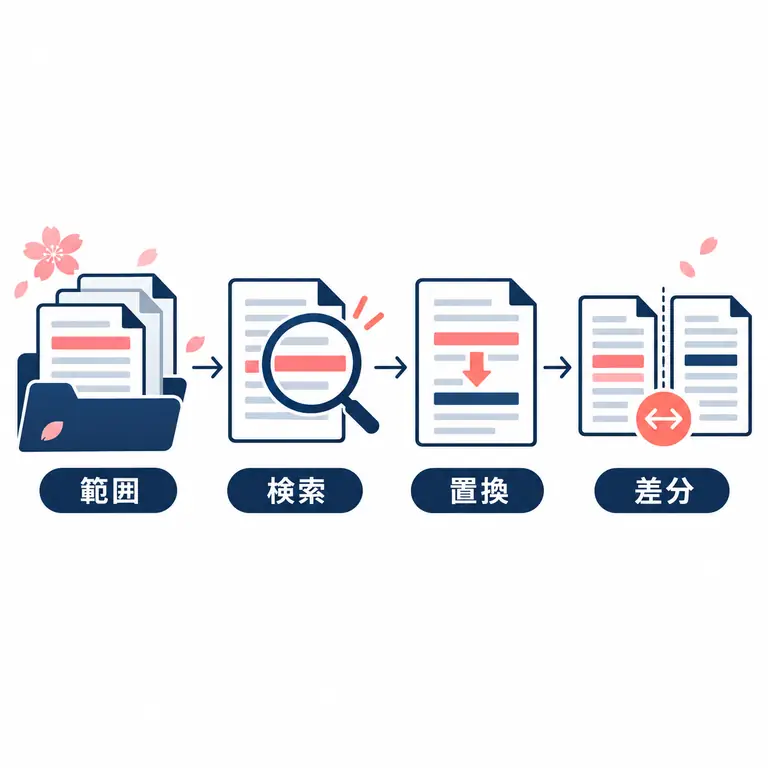
A safe seven-step search and replace workflow
A reliable workflow fixes the scope before it fixes the pattern. Confirm the active tab, file name, read-only state, and selected range. A correct regular expression can still damage the wrong document or a selection that was accidentally cleared. For a multi-file task, write down the folder and exclusions so another person can repeat the same search.
After the replacement, inspect more than one visible line. Compare the reported count with the changed locations, then check the beginning, middle, and end of the file. CSV delimiters, timestamps, and configuration keys can look fine while their structure is broken. Start small, confirm the result, and only then expand the scope.
- Make a copyKeep a working copy so the original can be restored.
- Choose the scopeSelect the current document, a range, or a Grep folder.
- Search without editingRead the count and the surrounding context.
- Choose literal or regexUse a fixed string for a fixed term and regex for a shape.
- Test a small sampleReplace a few lines in a copy first.
- Expand only after reviewRun Replace All after the matches are understood.
- Review and saveCheck diff, encoding, line endings, and format before saving.
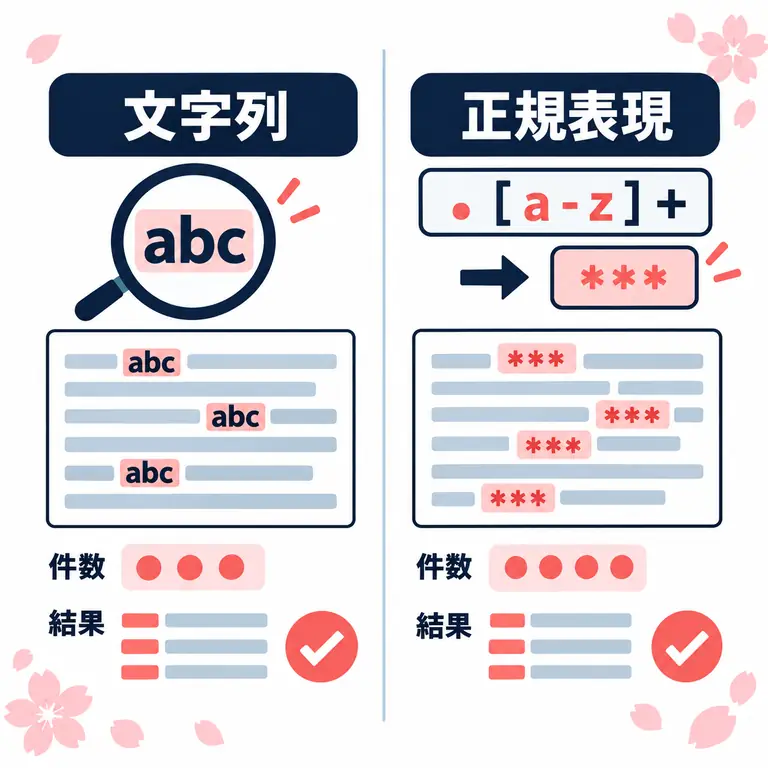
Literal search versus regular expressions
Literal search is the right starting point when the exact same text should change. It keeps the pattern short and makes each match easy to read. Case, full-width characters, word boundaries, and other options can change the count, so record the options when a replacement needs to be repeated later.
Regular expressions help when the target is a rule: a date, a line start, a sequence of digits, or several spaces. The regular expression engine used by Sakura Editor is not identical to JavaScript in a browser. Use an online tester for a draft, then confirm the final syntax and match count in a copy opened in Sakura Editor.
| Situation | Method | Caution |
|---|---|---|
| Change one fixed label | Literal search | Check case and width |
| Normalize line starts | Regular expression | Confirm line mode |
| Change a date or number shape | Regular expression | Test a non-match example |
| Search multiple files | Grep | Do not confuse it with current-file search |
Practical replacement examples for logs, CSV, and settings
Search and replace is useful for changing an environment name in logs, updating a setting key, or cleaning a controlled list. First decide whether comments and sample values should change with the real value. A comma inside a quoted CSV field has meaning; replacing every comma or line break can change the columns. Treat file syntax as part of the scope, not as decoration.
Capture groups can keep part of a match while moving another part. That is useful for swapping two words, but an exception row can make a broad pattern unsafe. Test a short synthetic sample, one real record, and then the full copy in that order. Keep the expression and the selected range in a note so a review can explain what changed.
| Example | Search idea | Check before replacing |
|---|---|---|
| Rename an environment | Literal search | Should comments change? |
| Remove trailing spaces | Target spaces at line end | Are spaces meaningful? |
| Swap two fields | Use two capture groups | Exclude three-word rows |
| Change a CSV value | Respect columns and quotes | Do not break separators |
^([A-Za-z]+),([0-9]+)$
$2,$1Selection, current file, and Grep are different scopes
Many replacement mistakes come from scope, not syntax. For the current document, verify the active tab and file name. For a selection, make sure the selection still exists and decide whether it is allowed to cross line breaks. After a replacement, the selection can move, so do not assume the same range remains selected.
Switch to Grep when the job spans multiple files. Grep needs its own folder, file-name pattern, exclusions, and encoding decisions. Read the result list first, then open files and perform a controlled replacement. This separation makes it possible to report which files changed instead of treating a folder-wide operation as one opaque action.
| Scope | Use it for | Review |
|---|---|---|
| Current document | One file and a fixed term | Active tab and read-only state |
| Selection | A known small region | Selection and line breaks |
| Grep | Several files | Folder, extension, exclusions |
When search or replacement does not work
If there is no match, return to a literal search before making the pattern more complex. Full-width and half-width characters, tabs, trailing spaces, line endings, and case settings can look identical while remaining different. Check one option at a time: scope, regex mode, word mode, and the actual characters copied from the file.
If there are too many matches, narrow the selection or file type and add exclusions. If the result is mojibake, stop replacing and return to the original copy; diagnose encoding and BOM separately. If line counts change, use the line-ending workflow rather than assuming the search expression caused every change.
| Symptom | First check | Next action |
|---|---|---|
| No match | Characters, regex, scope | Try one literal match |
| Too many matches | Selection and exclusions | Narrow the target |
| Mojibake | Encoding and BOM | Restore the copy and diagnose |
| Line count changed | Line endings and blank lines | Use the line-break guide |
Review the file before saving
A replacement is not finished when the highlighted text looks right. Inspect matching lines at the start, middle, and end, compare the reported count with the actual changes, and use a diff view when the file matters. Separate content edits from line-ending, trailing-space, and encoding changes so a reviewer can understand the result.
For a shared CSV or configuration file, open the saved copy in the application that will consume it. A file can look correct in Sakura Editor and still fail another parser. Record the search expression, options, scope, and date when the operation is part of a repeatable maintenance task.
- Inspect three positionsCheck the start, middle, and end of the document.
- Reconcile countsCompare search and replacement counts with changed lines.
- Review the diffSeparate intended content edits from formatting changes.
- Confirm encodingChoose UTF-8, Shift_JIS, BOM, or the format the consumer needs.
- Open it in the target appTest CSV and settings files with the application that reads them.
Frequently asked questions
Frequently asked questions
Why search before replacing in Sakura Editor?
A search-only pass reveals the count and context, which helps avoid changing comments, examples, or another field with the same text. Test Replace All on a copy first.
When should I use literal search instead of regex?
Use literal search for one fixed string. Use a regular expression for a repeatable shape such as a line start, date, or number. Confirm the final match in Sakura Editor because browser regex behavior can differ.
What should I check when Sakura Editor replacement finds nothing?
Check full-width characters, tabs, trailing spaces, line endings, case options, regex mode, word mode, and the search scope. Try one literal match to isolate the issue.
Should I use Grep to replace text in several files?
Use Grep to design the folder, file pattern, exclusions, and encoding scope. Review its result list, then open files and make controlled replacements so the changed file list is clear.
Is line-ending replacement the same as normal text replacement?
No. CRLF/LF normalization and blank-line cleanup have different risks. Follow a line-ending workflow and review it separately from ordinary content changes.
What if replacement causes mojibake?
Stop, restore the copy, and diagnose encoding and BOM before making another replacement. After the file displays correctly, repeat the small-sample test.