Sakura Editor practical guide
Sakura Editor tab display: configure the tab bar, search, and switching
To keep several files in one Sakura Editor workspace, start with the tab bar in Common Settings. Showing the bar is only the first decision: window grouping, close-button behavior, tab layout, and ways to find an open file affect how predictable the workspace feels. This guide separates those choices and explains what to check when Sakura Editor tab display does not behave as expected.
Updated: 2026-10-31
The short answer: configure visibility and grouping separately
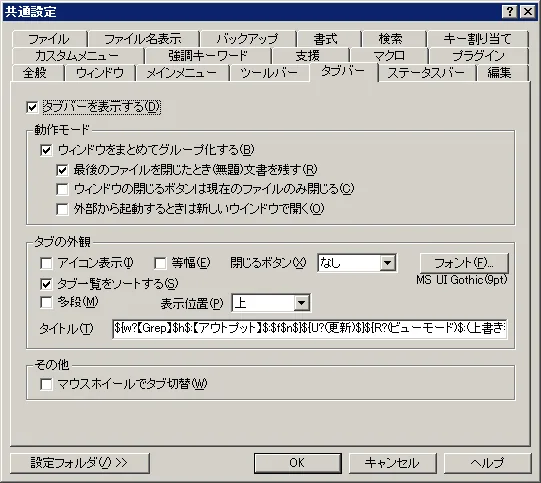
For Sakura Editor tab display, open Settings, choose Common Settings, and select the tab bar properties. Enable the option to show the tab bar, then decide whether windows should be grouped into a tab-style workspace. You can also choose how to close the last file, whether tabs may use multiple rows, and how a long list should be reviewed. The tab bar changes file and window navigation; it does not convert Tab characters or spaces in your document.
| Goal | Setting or action | Useful when |
|---|---|---|
| Make tabs visible | Common Settings → Tab bar → show the tab bar | You want to switch between several open files |
| Keep files in one workspace | Group windows together | You want a tab-style editor workflow |
| Find an open file | Tab list, window list, or a search/Grep result | Names are hard to scan in a long tab row |
| Change indentation | Tab and space conversion or search/replace | You need to edit Tab characters in the document |
On this page
How to enable Sakura Editor tab displayChoose grouped tabs or an SDI-like window layoutAdjust tab count, multiple rows, and close buttonsUse tab search and file switching without mixing search scopesTab display is different from Tab characters and spacesTroubleshoot missing tabs and unexpected close behaviorSave the setup and recheck it after an updateSummary: choose the workspace behavior before polishing the tabsHow to enable Sakura Editor tab display
When the tab bar is not visible, open one Sakura Editor window and use Settings to open Common Settings. Select the tab bar properties, enable the option to show the tab bar, and apply the change. Open two or three small copies of text afterward. A controlled sample makes it easier to tell whether the setting worked, especially when many old windows were already open.
Showing the tab bar and grouping windows are separate options. The first makes the navigation strip visible. The second changes how several editor windows are collected into a tab-style group. You can keep an SDI-like workflow while showing a tab bar, so do not enable every grouping option at once if you are trying to preserve the way external files currently open.
- 1. Open Common SettingsUse Settings and choose Common Settings, then move to the tab bar properties.
- 2. Show the tab barEnable the show-tab-bar option and apply it with OK or the available apply control.
- 3. Test a small sampleOpen a few copied files and check tab names, the list button, and close behavior.
- 4. Choose the grouping modeOnly after the bar is visible, decide whether windows should be grouped and whether multiple rows are useful.
Choose grouped tabs or an SDI-like window layout
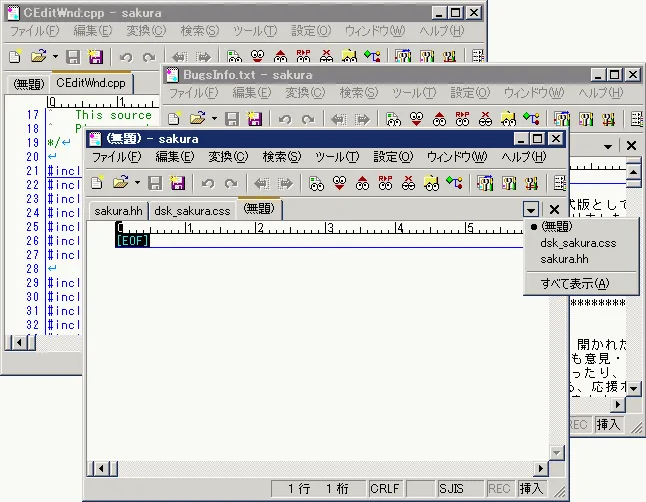
When the group-windows option is enabled, several files are collected in one window and behave more like a tab editor. This is convenient when you move between source files and logs, read a set of notes, or want one place to review open documents. It can also mean that a file launched by another program joins the current group, so a tab count that grows unexpectedly is often a grouping decision rather than a display failure.
When grouping is disabled, Sakura Editor can still show a tab bar while keeping separate windows. That can be clearer on two monitors or when a reference file must remain beside the document being edited. If Sakura Editor tab display is enabled but new windows continue to appear, check the grouping mode and the option for opening externally launched files in a new window before changing the visual settings.
| Choice | What you see | Good for | Watch for |
|---|---|---|---|
| Group windows | Files collected in one tabbed window | Reading many files in sequence | External launches may join the same group |
| Do not group | Separate windows can still have tab bars | Multiple monitors and side-by-side review | Tabs alone will not manage every open window |
| Keep an untitled document | A blank editor remains after the last tab closes | A familiar tab-application feel | Closing behavior may differ from older versions |
Adjust tab count, multiple rows, and close buttons
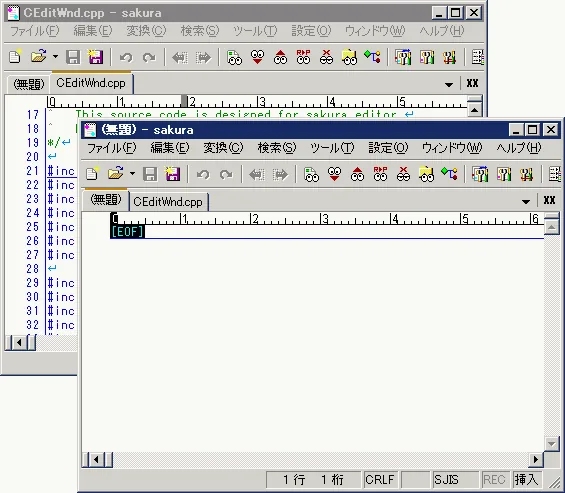
Once Sakura Editor tab display works, tune the appearance for the number of files and the width of the monitor. Multiple rows can help when many documents must stay open. A tab list or shorter title format is often safer than making every tab extremely narrow. Fixed-width tabs, icons, close buttons, tab position, and wheel switching are small choices, but they affect whether a click closes the intended file.
The official help marks some options, such as multiple rows and tab position, as version-dependent. If an option is missing, compare the installed version with the help page instead of assuming the path is wrong. Closing finished files, using the list button, and splitting a large search into a separate group can be more reliable than keeping every document open indefinitely.
| Option | Use it when | Check |
|---|---|---|
| Multiple rows | The tab row no longer fits horizontally | The extra height does not hide the text area |
| Sort the tab list | File names are easier to scan alphabetically | The window-list ordering changes |
| Close buttons | You want to close the current tab directly | Whether the button closes one file or a group |
| Tab position | Tabs are easier to read above or below the editor | The available positions depend on the version |
Use tab search and file switching without mixing search scopes
Clicking a tab is enough for a short list, but long names and similar files make the tab list or window list more useful. The official tab-bar help describes a list button whose left and right clicks can expose different kinds of window information. When you know part of a file name, inspect that list first. It keeps navigation separate from searching the text inside the file.
The phrase tab search can describe two different tasks: finding an open file, or searching the contents of many files. Use a tab or window list for file names, Grep for a cross-file content search, and ordinary search and replace for the current document. Decide whether results should open in the current group or a new group before you run the search, then close or reorganize result tabs when the review is complete.
- Find by file nameOpen the tab or window list and compare the file name with its path.
- Find by contentUse search for the current document and Grep for several files, with the scope stated first.
- Choose where results openDecide whether results should join the current tab group or a separate workspace.
- Clean up after reviewClose checked tabs and return to the work-unit grouping that makes the next task clear.
Tab display is different from Tab characters and spaces
Search results for Sakura Editor tab can mix the visual tab bar with the Tab character in a document. The tab bar changes how files and windows are navigated; it does not edit indentation, CSV separators, or Markdown spacing. Conversely, converting Tab characters to spaces does not turn separate editor windows into a tabbed workspace. Keeping those two meanings separate prevents the wrong menu from being changed.
If indentation needs to be normalized, make a small copy and use the tab-and-space converter or search and replace on a defined range. If you expected a visual tab bar but text changed, or expected text conversion but windows stayed separate, review which menu was used. Encoding, line endings, and a diff are worth checking before the converted file replaces the original.
| Target | Purpose | What changes |
|---|---|---|
| Tab bar | Switch between files and windows | The workspace display and grouping |
| Tab character | Control indentation or separators | Whitespace stored in the document |
| Search and replace | Find and change matching text | The selected part of the document |
| Grep | Find matches across files | The result list and destinations; text changes only when requested |
Troubleshoot missing tabs and unexpected close behavior
If the tab bar still does not appear, confirm that the tab-bar property was changed, the setting was applied, and more than one file was opened after the change. Close old windows and restart with two small saved copies when necessary. This separates a persisted window state from the setting itself and gives you a repeatable test instead of changing several options on a large project.
If tabs are visible but closing one file closes everything, an external launch opens a second window, or multiple rows never appear, review the combination of grouping, close-button, external-window, and version-specific options. The official help documents these behaviors separately. Check the current settings folder and any user-specific configuration after you compare the installed version with the documentation.
| Symptom | Check first | Next step |
|---|---|---|
| No tab bar | Show-tab-bar option | Apply the setting and reopen two small files |
| Too many windows | Window grouping | Decide whether an SDI-like layout is intentional |
| Close action is too broad | Close-button and group settings | Test with copied files before real work |
| Multiple rows or position missing | Installed version and help version | Use the options supported by that version |
| Settings reset after restart | Settings folder and permissions | Record the folder with the settings-export guide |
Save the setup and recheck it after an update
After tuning the tab bar for daily work, record which options changed. When moving to another PC, confirm the settings folder and user-specific configuration, then use the settings-export workflow to back up the relevant files. A setting that seems not to save can be caused by a different launch method, a different folder, or permissions, not by the tab-bar control itself.
After a Sakura Editor update, recheck the tab bar, close-button behavior, multiple rows, position, and the option for externally opened files. The official help includes version notes for several controls, so an old screenshot should not be treated as a guarantee that the current dialog has the same labels. Change one option at a time and test opening, switching, and closing on a copied file before returning to production work.
Summary: choose the workspace behavior before polishing the tabs
Start Sakura Editor tab display with Settings → Common Settings → Tab bar, then verify the result with a few copied files. Whether to group windows is a workflow decision: one tabbed workspace suits sequential review, while separate windows may be clearer on multiple monitors. Multiple rows, close buttons, list buttons, and wheel switching should be chosen against the number of files and the risk of closing the wrong one.
Keep the tab bar, Tab characters, search, and Grep as separate concepts. When tabs do not appear, settings reset, or an update changes the dialog, compare the installed version and settings folder with the official help, reproduce the issue on a small copy, and only then apply the change to a real project.
Frequently asked questions
Frequently asked questions
How do I show tabs in Sakura Editor?
Open Settings, choose Common Settings, select the tab bar properties, and enable the option to show the tab bar. Open a few files to verify the tab names and list button, then enable grouping only if that workspace behavior is wanted.
Are the Sakura Editor tab bar and the Tab character the same thing?
No. The tab bar is a navigation display for files and windows. A Tab character is whitespace stored in the document. Converting tabs to spaces does not change the window layout.
What does Sakura Editor tab search mean?
For open file names, use the tab or window list. For content across several files, use Grep, and for the current document use search and replace. Define the search scope before opening results.
Why do new windows appear after I enable tab display?
Showing the tab bar and grouping windows are separate settings. Check whether grouping is disabled and whether external launches are configured to open in a new window.
Why do Sakura Editor tab settings reset?
Check the settings folder, user-specific settings, launch method, and permissions. Record the folder with the settings-export workflow and test one tab-bar option at a time after restarting.
Can Sakura Editor show tabs in two rows?
The official help lists multiple-row tabs as a version-dependent option. Compare your installed version with the help page; if it is unavailable, use the tab list or close finished files to reduce the row length.